Practical iPhone guides
How to import Google Timeline into Whereday on iPhone
Save a Google Timeline JSON to Files, preview it in Whereday, and choose which visits and timed points to add.
Import the JSON, then inspect the copy
To import Google Timeline into Whereday on iPhone, save your Google export as a JSON file in Files, then open Settings → Data Import → Import File in Whereday. Review the detected format, new records, duplicates, and skipped entries before confirming.
Google Timeline import is included in Whereday 1.8 (build 52). Supported import is free. Tracking new routes and writing exports depend on your plan and existing purchase rights; see current access and pricing. Import reads the file locally without signing into Google or uploading the archive.
Keep the original Google archive separately. Imported visits and timed points are a working copy, not a guarantee that every Google field, activity, or label will be reproduced.
1. Export and keep your Google archive
- In Google Maps on iPhone, open your profile picture or initial, then Settings → Location & Privacy → Export Timeline data.
- In the share sheet, choose Save to Files, select a location, and save
location-history.json. - Retain an unchanged copy before selecting the file in another app.
These steps follow Google’s iPhone export instructions, checked October 30, 2026. Google notes that settings can vary during rollouts. Its encrypted device-transfer backup is separate from the downloadable JSON.
If you already have a legacy Takeout ZIP, extract it first and select individual supported JSON files. Whereday does not accept a ZIP or an entire folder. Importing does not move or delete Google history and cannot recover records absent from your archive.
2. Check which JSON you have
| Export | What Whereday can read |
|---|---|
| Classic Location History | A locations array with coordinates and timestamps. Imports points without inventing visits. |
| Legacy Semantic Timeline | timelineObjects with supported place visits and timed activity paths. |
| Device Timeline | semanticSegments or an iOS root array containing supported visits, activities, and timed paths. |
Each file is limited to 50 MiB and 250,000 visits plus points. A large archive needs to be split into smaller valid files before selection; changing its extension or removing arbitrary lines is not a reliable way to do that. Untimed waypoints are not given invented timestamps. Review invalid and unsupported-entry counts.
3. Preview before saving
- Open Settings → Data Import → Import File and select one JSON file.
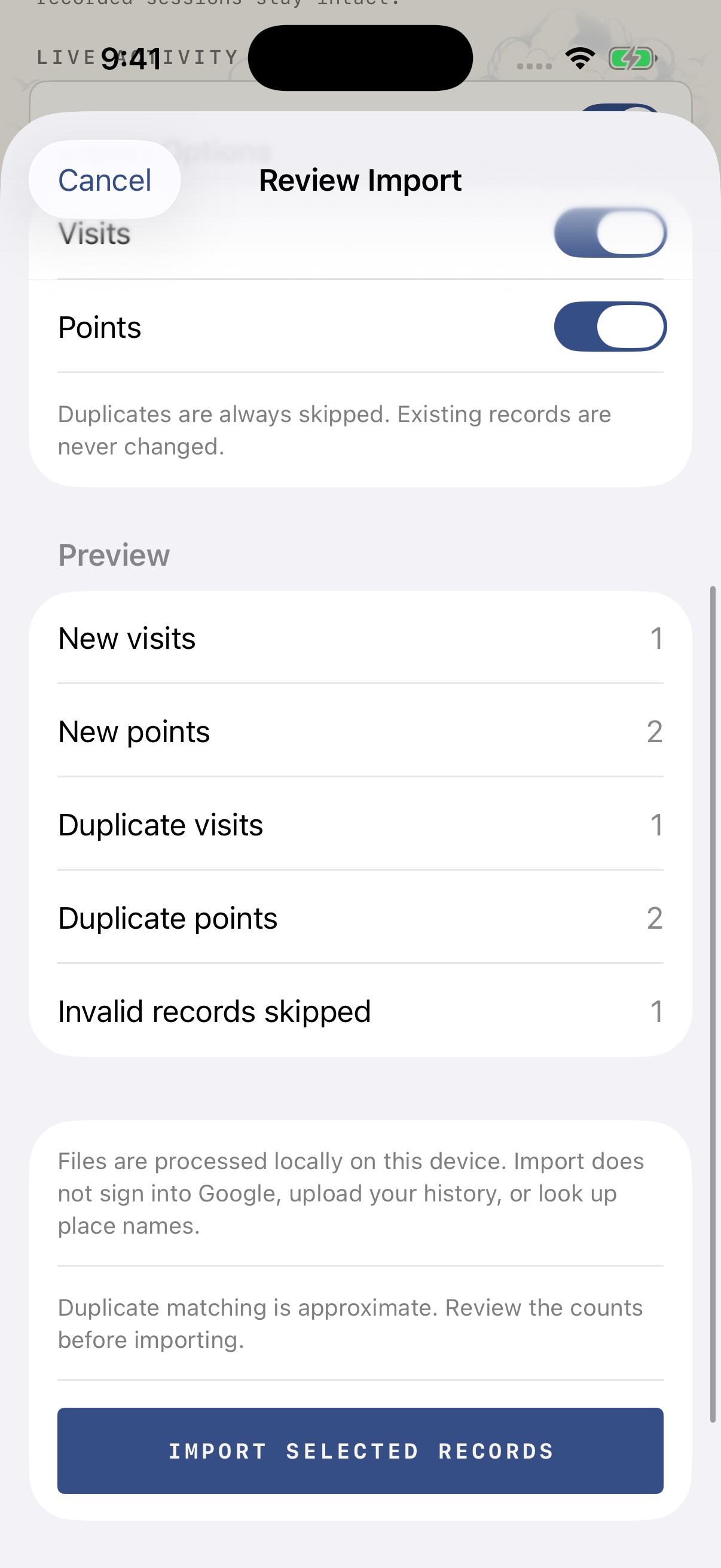
- Review its detected format and date range, new visits and points, duplicates, and skipped entries.
- Choose visits, points, or both. Raw location points cannot supply inferred visits.
- Cancel if the result is not what you expected. Preparation and cancellation do not save records.
- Choose Import Selected Records only when the selected counts match what you want to add.
Duplicate matching is approximate. Points match at the same rounded second within 10 metres. Visits use time and distance tolerances. Existing records are not overwritten to force them to match Google’s labels.
A checked example with invented records
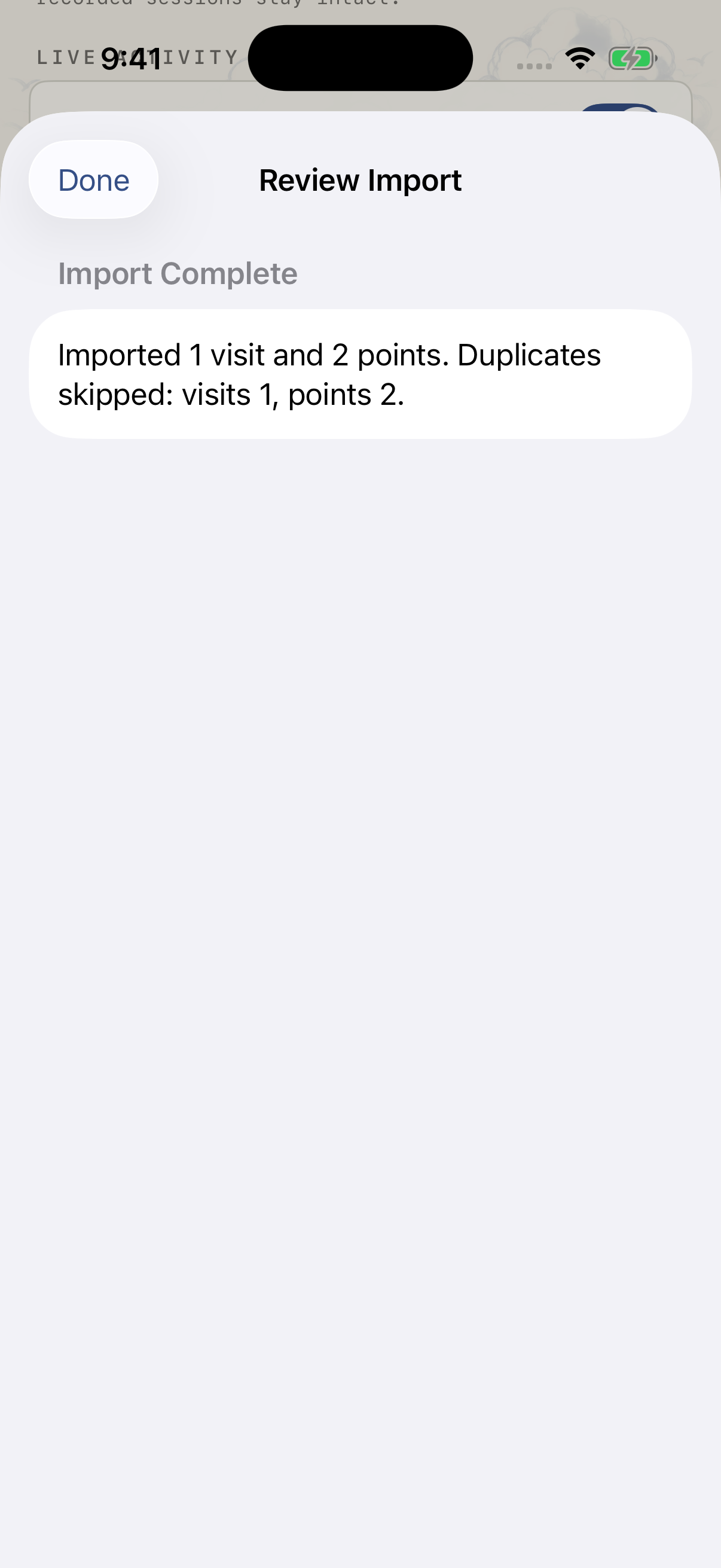
Inspect the synthetic Google Timeline JSON. It contains two copies of a visit and its two timed points, plus one invalid entry. The coordinates and January 1, 2020 UTC dates are invented; this is not an exported personal journey.
| Check | Observed result |
|---|---|
| New visits / points | 1 visit / 2 points |
| In-file duplicates | 1 visit / 2 points |
| Invalid records | 1 skipped entry |
| Confirmed import | 1 visit and 2 points added; Settings totals matched |
How this example was checked
The importer, preview, and Settings files match the frozen source manifest for distributed version 1.8/build 52. All 12 targeted importer tests passed on October 30, including cancellation, selection, and repeat-import duplicate handling. UI checks used a Debug rebuild on iOS 26.5, not the App Store binary on a physical phone. A first import also retained its Settings counts after relaunch. Reopening the picker was unreliable through automation, so a new end-to-end repeat-import UI pass is not claimed. The simulator already had a test purchase entitlement; this does not verify purchases.
4. Check the destination day
Open Timeline or Map at a date represented in your archive. Check a known visit, its times, and the available route points. The preview formats dates in the phone’s timezone: this sample’s January 1 UTC timestamps appeared as December 31 in the UTC−4 test environment.
Keep the original while you inspect the result. Before confirming the same file again, inspect the duplicate counts. If records you already imported are offered as new, cancel and investigate rather than assuming another import is harmless. Native tests check repeat-import matching, but approximate matching is not an identity guarantee.
If the file is rejected or looks incomplete
- Select extracted JSON, not its ZIP container or folder.
- Check the size and record-count limits.
- A valid JSON extension does not establish a supported Google structure.
- Retain the source file if coordinates or timestamps are missing. Do not invent records merely to make it import.
- Raw-point archives do not create visits. Unsupported activity details may not transfer.
For choosing a recorder, read the Google Timeline comparison. For retaining Whereday records afterwards, use the backup guide. A GPX route file and a restorable journal copy serve different tasks.
Keep the original.
Inspect the imported copy.
Download Whereday, check that you have version 1.8 or later, and preview a supported file before saving.
Download Whereday for iPhoneNot sure which JSON file you have?
Use the local Timeline JSON inspector to identify known structures and review coordinates and times before opening the native preview. The format tutorial explains raw, semantic and device examples, untimed points and pre-duplicate counts.