Practical iPhone guides
Read your iPhone location journal in Obsidian
Export visits as a Markdown file, copy it into your desktop vault, and check the rendered table. Keep your own writing separate from generated location notes.
Export a note, then place it in your vault
To read Whereday location history in Obsidian, export Visits as Markdown, save the .md file, and copy it into a folder inside your Obsidian vault. Open the note and check the dates and visit table. No Whereday-specific Obsidian plugin is needed for this manual file workflow.
This guide covers a manual handoff to an existing desktop vault. Recording and export preview are free; writing the Markdown file requires Whereday’s optional unlock. It does not set up automatic iPhone-to-vault sync.
Choose Visits for a readable daily journal
A visit export is a practical starting point when you want to remember stops rather than inspect every GPS point. Its Markdown contains date headings and a table with arrival and departure times. Optional columns include duration, coordinates, place name, address, and notes; source and confirmation status are also included.
A Points export is different: it lists recorded locations with times and optional speed, altitude, accuracy, and outlier information. A long recording can produce a large table. Markdown does not turn those rows into a route map in Obsidian.
| What you want | Choose | Check before saving |
|---|---|---|
| A list of places and stops | Visits → Markdown | Date range, names, notes, and the columns you need |
| Timestamped GPS rows | Points → Markdown | Point count, accuracy filters, and file size |
| A route for a map viewer | Points → GPX | Use the GPX walkthrough; the optional map below checks visit markers from Markdown |
| A copy for restoring supported records | Separate Visits and Points JSON files | Use the backup checklist alongside your readable notes |
1. Export the date range as Markdown
- In Whereday, open Export and select Visits.
- Select Markdown. Deselect other formats if you only want the note file.
- Choose the day or date range. Review duration, completion, and time filters so they do not remove visits you wanted to keep.
- Choose the visit fields. For a readable note, names and notes may matter more than coordinates. Keep a separate supported backup if you need restoration later.
- Open Preview. Check a known stop and its date before writing the file.
- Export to your chosen folder, or use the share sheet to save in Files. Confirm that the
.mdfile exists.
For one file per day, enable the daily output layout and inspect the resolved filename preview. A template such as {date}-visits can make files easier to recognize. Treat it as an example; check the actual generated filename before copying it into your vault.
Visit table dates and times are formatted using the device’s calendar and locale. Keep timezone context in a separate note when a trip crosses timezones; do not assume these human-readable times carry the same explicit UTC timestamps as a GPX file.
2. Copy the file into your desktop vault
Make the saved export available on the computer where you use Obsidian. Use a transfer destination you control. This step moves location records outside Whereday’s local journal, so the destination’s storage and sharing settings apply.
- Find the folder for the Obsidian vault you intend to use.
- Create a subfolder such as
Locationfor generated exports. - Copy the Markdown file into that subfolder. Keep the original until you have checked the copy.
- In Obsidian’s file explorer, open the note. Switch to Reading view if you want to inspect the rendered table.
- Verify the date heading, number of visits, names, and times against Whereday’s Preview.
Obsidian documents both copying Markdown directly into a vault folder and dragging it into the file explorer in its Markdown import guide. Its storage guide explains that a vault is a folder of local files and reflects external file changes.
If the note is missing, confirm you copied it into the currently open vault rather than a nearby folder. Check that the file extension is .md. If the table is difficult to read, review fewer dates or export fewer optional columns instead of treating the file as a map.
Try a synthetic note without sharing your history
Download the synthetic Markdown journal. It uses two invented stops near latitude zero and longitude zero on January 1, 2000. It is hand-authored to illustrate Whereday’s visit-table structure, not a captured app export.
Your vault/
  Location/
    2000-01-01-visits.md
  Trip reflections.md
The example was copied into a separate temporary desktop vault and opened in Obsidian 1.14.4. Both visit rows, date heading, names, and times rendered in Reading view. That verifies the sample’s desktop Markdown rendering; it does not verify an iPhone export, cloud transfer, mobile folder access, or a scheduled run.
Inspect the sample in a separate folder or test vault. It is not needed to import or restore your actual journal.
Try a file produced by the released exporter
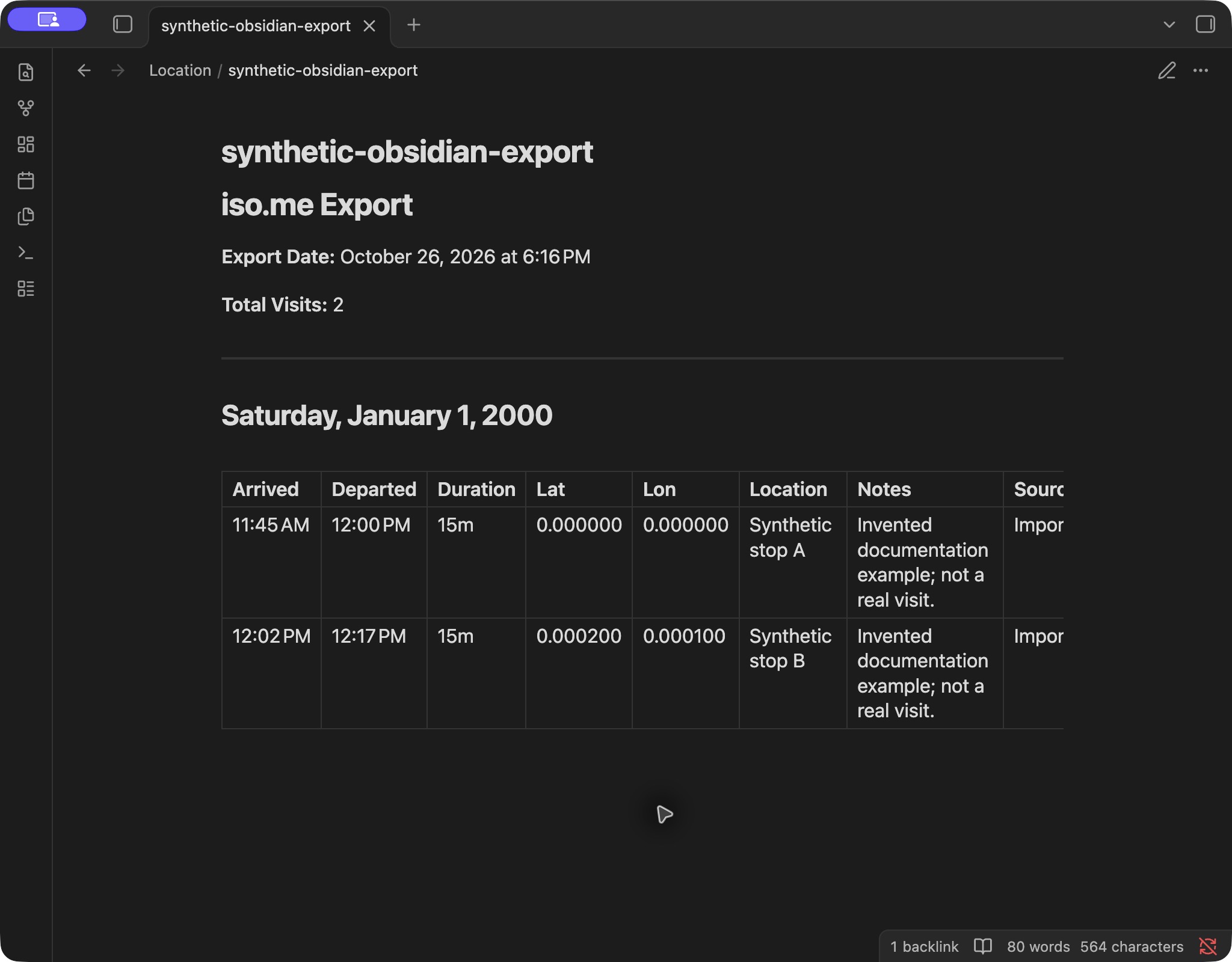
Download the synthetic app-generated Markdown export. This second example was rendered by Whereday 1.7.16’s export pipeline from two invented visit records. It contains the same two named stops, with the Address column turned off. No personal location history was used.
The file was generated with UTC as the test timezone. Its January 1, 2000 rows show 11:45 AM → 12:00 PM and 12:02 PM → 12:17 PM, each lasting fifteen minutes. The Export Date at the top records when the file was created, rather than the date of the invented visits.
Copy the downloaded file into your test vault’s Location folder, then open it in Reading view. Check the two rows, visit names, notes, and coordinate columns. The exporter’s Source and Status columns describe the records; they do not turn the note into a live connection to Whereday.
The native export test also parsed this Markdown back through Whereday’s importer and checked the two visits, names, coordinates, and arrival times. That is a file-format check, not a test of restoring data on another phone.
We copied this exact file into a clean desktop vault and checked it in Obsidian 1.14.5. Both visit rows rendered in Reading view, and a link from a separate Trip reflections note opened the export. The nine-column table is wider than Obsidian’s default reading area; scroll horizontally to see Source and Status, or choose fewer columns before exporting.
Optional: show the sample visits on a desktop map
The separate Whereday Maps plugin renders an iso-me code block from files already in your vault. It does not copy files from your iPhone or set up sync. The plain Markdown workflow above works without it.
- In a separate test vault, install and enable Whereday Maps 0.7.15 using its published installation instructions. The plugin requires Obsidian 1.12.0 or newer. Community plugins execute code on your device; enable them only if you trust the plugin.
- Copy the unchanged native synthetic export into
Location/. Keep its Lat and Lon columns: removing them left zero plottable visits in the checked parser. - Add the code block below to a separate note, or download the synthetic map note. Open it in Reading view.
```iso-me
source: Location/synthetic-obsidian-export.md
title: Two invented visits
height: 500
show_visits: true
show_routes: false
show_stats: true
tile_provider: opentopomap
auto_fit: false
center: 0.0001, 0.00005
zoom: 17
```
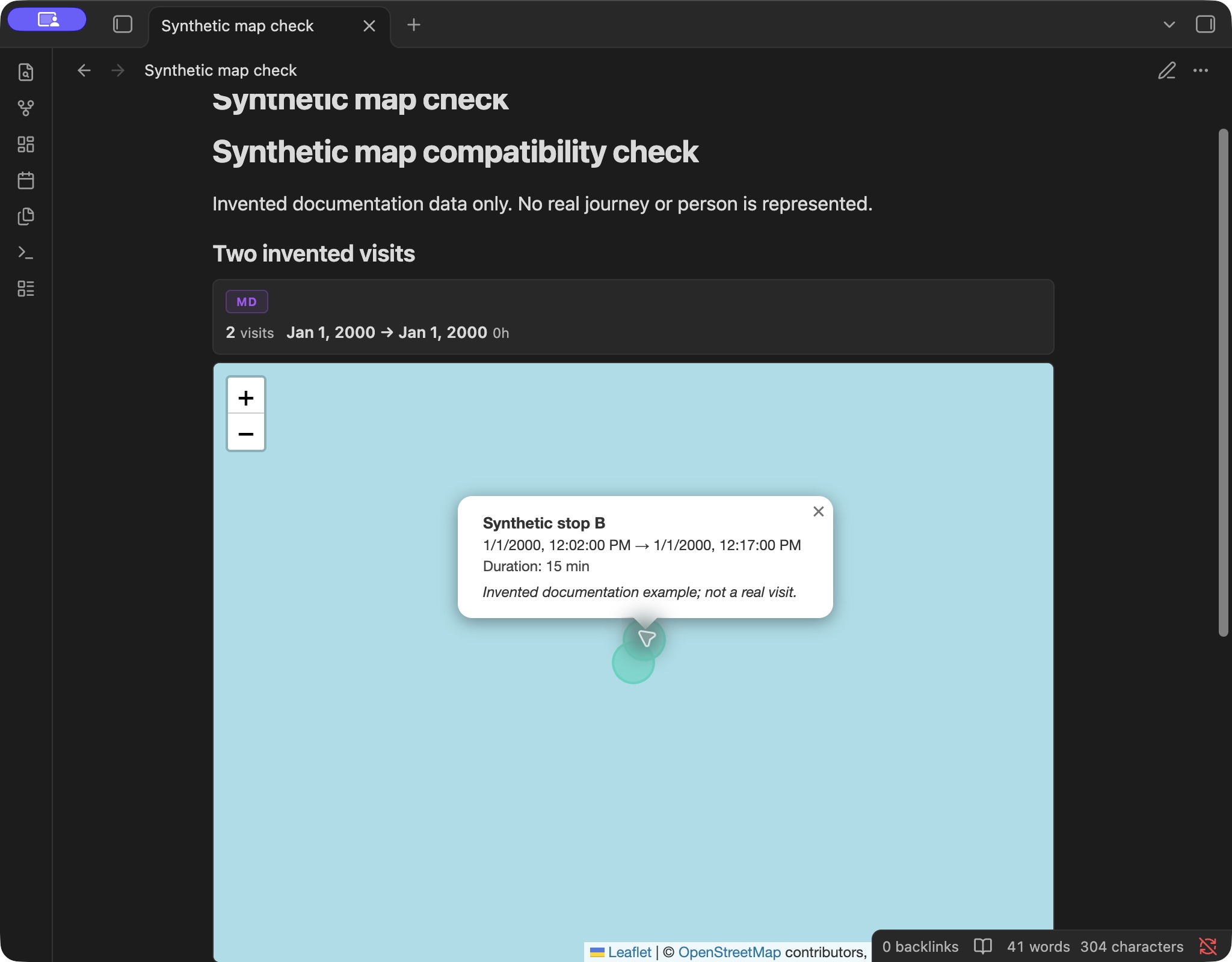
This center and zoom are for the invented sample near (0, 0). In Obsidian 1.14.5 on desktop, the plugin showed two visits and two markers. Both popups contained the expected names, clock times, notes, and 15-minute durations. No route is expected from this visits-only file.
If markers appear but the background does not
The default CARTO provider displayed API KEY REQUIRED during this check. OpenTopoMap returned a maximum-zoom message above zoom 17; the explicit configuration above rendered its ocean tiles at 17. A blank background or provider message does not by itself mean your visits failed to parse. Check the visit count, provider, and zoom separately.
Map tiles involve network requests. The selected provider receives tile coordinates for the displayed area and ordinary request metadata. Review the plugin’s network disclosure before mapping personal records.
Keep clock times and archive timestamps separate
This Markdown contains clock times without a timezone offset. The checked plugin parser interprets them in the computer’s local timezone: the same 11:45 AM arrival became 11:45 UTC on a UTC host and 15:45 UTC on a Puerto Rico host. Keep original timestamped exports separately when comparing records across timezones. This test does not establish equivalent behavior for other formats or localized date headings.
Keep your writing outside generated files
Use generated location notes as a source you can link to from your own reflections. For example, a separate trip note can contain [[Location/2000-01-01-visits]] alongside your comments. Keep that handwritten note separate from any file an export process may replace.
Before adding a newer export for the same day, compare filenames and content. Manual exports can create suffixed filenames instead of replacing an existing file. Two similarly named notes may be two snapshots, not two different journeys.
If you intentionally replace a generated note, retain the earlier copy until you have checked the new one. Editing a note in Obsidian does not automatically update the visit in Whereday. This workflow has no bidirectional edit sync.
Scheduled files and mobile vaults need separate checks
Whereday’s paid Auto Export feature writes the current local day to a selected folder. A selected folder is not proof that Obsidian can see it, that a cloud service has transferred it, or that the background run succeeded. Start with the manual file handoff above.
Auto Export’s Rewrite mode can replace the day’s file. Keep personal writing elsewhere. An update runs on the current day, so enabling it today is not an initial archive of earlier history. Check the latest file and the recorded run result; see the automatic-export reference for scheduling behavior.
For iPhone and iPad vaults, follow Obsidian’s current sync instructions. Its iCloud guidance uses iCloud Drive/Obsidian/[Your Vault Name] and warns against mixing sync services for the same vault. This guide has not verified Whereday’s folder picker or scheduled writes into that mobile vault location.
For restorable location records, keep the original supported exports separately. A readable note with omitted coordinates or edited fields may no longer be suitable for Whereday import, even though Obsidian still displays it correctly.
Keep the stops readable.
Add your own context.
Try free recording and Markdown preview. See current pricing for the optional file-export unlock.
Download free for iPhoneReviewed October 26, 2026 against Whereday’s Markdown exporter and Obsidian’s linked documentation. A synthetic note was rendered in a temporary desktop vault. Mobile handoff and scheduled vault delivery remain untested.