Practical iPhone guides
How to record an iPhone route and export a GPX file
Start tracking in Whereday, stop after your trip, then select Points and GPX in Export. Recording and preview are free; saving the file requires the optional unlock.
Whereday is currently listed as iso.me in the U.S. App Store.
Record first, then export the points
To record an iPhone route as GPX with Whereday, start tracking before your trip, stop when you finish, then choose Points and GPX in Export. Select the right date range, preview the result, and save the file to Files or share it with a compatible route viewer.
Recording is free. Previewing the export is free. Writing the GPX file requires the optional one-time unlock. This workflow exports a route recorded in Whereday; it does not extract old Apple Maps or Google Timeline history.
1. Record a short route
- Open Whereday and complete permission setup. Choose Always location access if you want recording to continue in the background.
- On the Map tab, start recording before you leave. Start enables GPS recording, visit monitoring, and significant location changes together.
- After a short walk or trip, stop recording. Stop ends both GPS and visit monitoring.
- Open Timeline and check the outing’s date, start and end times, and map. Confirm that it contains the part of the trip you intend to export.
Try this with a short session before relying on it for a full day. GPS can be noisy or unavailable, and permission changes or a stopped session can leave gaps. There is no separate passive visit-only switch. The recording reference explains distance filtering and auto-stop.
For a longer trip, choose an auto-stop duration that will not end early. Stop when you finish. Detailed GPS uses battery, and a larger distance filter trades route detail for fewer captured points; check the result before settling on a setting. Use the battery comparison checklist to compare your own recordings.
2. Choose Points and GPX
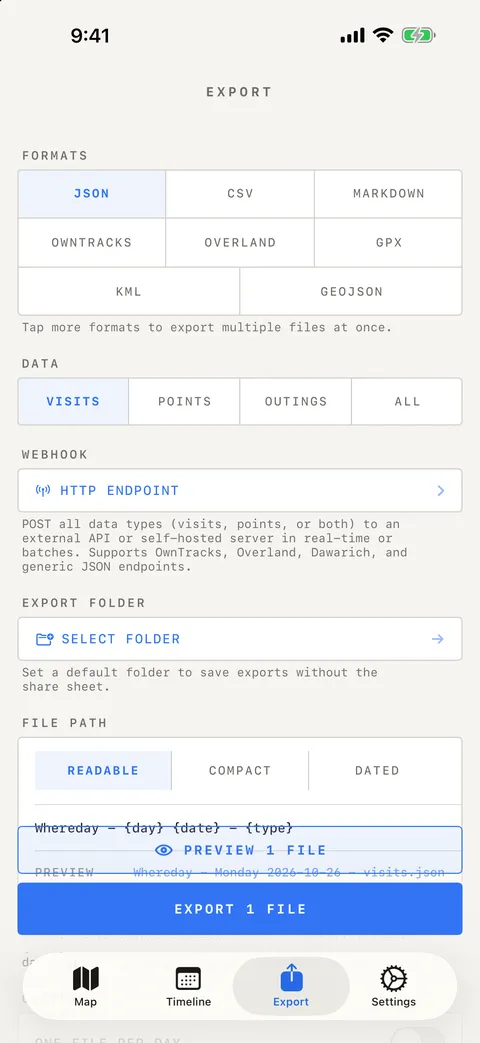
- Open Export and choose Points as the data type. These are the recorded GPS locations that make up a path.
- Select GPX. If other formats are also selected, the export can produce additional files.
- Choose the date range for your recording. Review any time-of-day, accuracy, and GPS-glitch filters that could exclude points.
- Open Preview. Check the intended date and file contents before paying for or writing an export.
- Export. With a default folder configured, look there for the saved file; otherwise use the share sheet to save it in Files.
You can also open a specific outing in Timeline and use its Export action with GPX selected. For a full reference on filenames, date filters, and saving destinations, see export and restore compatibility.
| Choice | GPX result | Use it for |
|---|---|---|
| Points | Track points grouped into track segments | The recorded path over a selected period |
| Visits | Waypoints, when visit coordinates are included | Stops rather than a continuous path |
| Outings | The selected outing’s route points | A particular recorded trip |
A GPX export with only visits can be valid but show pins instead of a line. Pick Points or an outing if the path is the part you want to keep.
3. Check the file in Files and your viewer
Find the exported .gpx file in the folder you chose. Confirm the filename and date before sending it elsewhere. If your destination application accepts GPX tracks, use its import or open-file action to select the file.
- Check that the track covers the expected start and end locations.
- Check timestamps against the trip. GPX times may be shown in UTC or converted to the viewer’s local timezone.
- Look for gaps and separate segments instead of assuming every straight line represents captured movement.
- Keep the original file if another tool rewrites or converts it.
GPX describes geographic data; it does not include a street map or guarantee that every app offers the same display. Files preview may show text or a file icon rather than drawing a route. A viewer that supports waypoints alone may not display a track.
Whereday exports recorded points. Do not assume the file follows the same road-matched line shown in a map preview. When consecutive points are more than ten minutes apart, the current exporter starts a new GPX track segment.
Open a track in gpx.studio
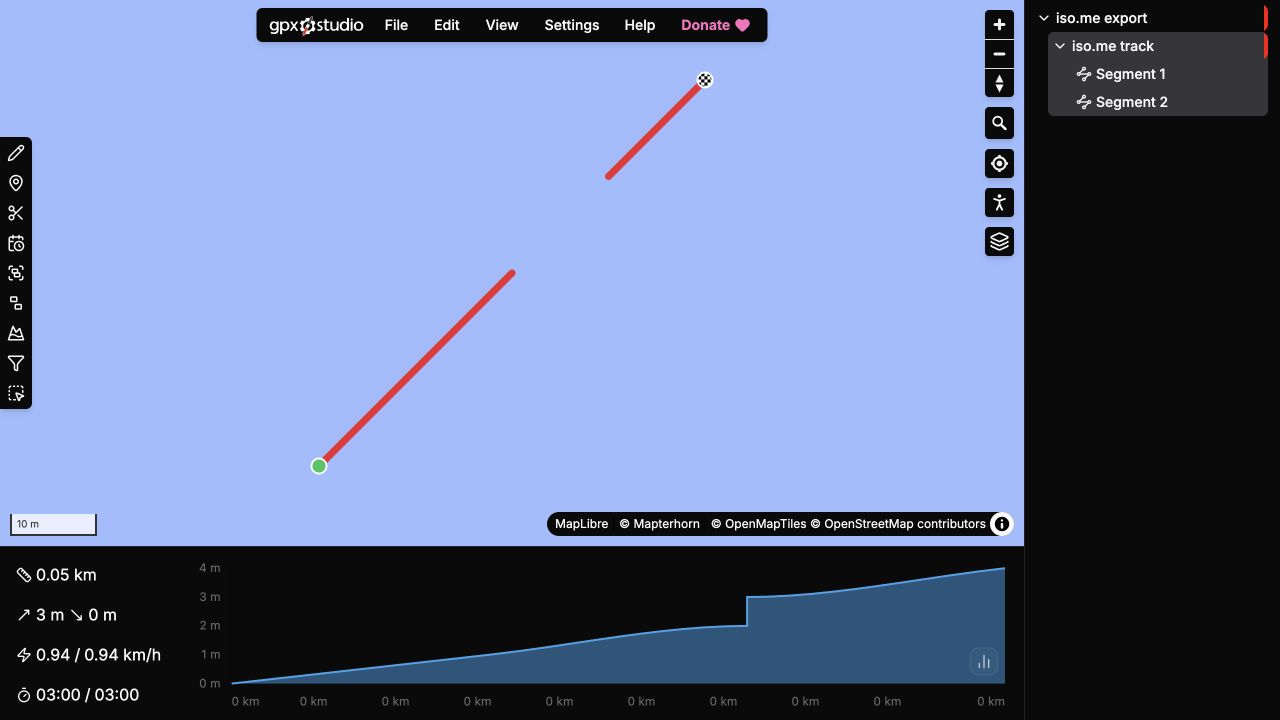
On a computer, open gpx.studio, choose File → Open…, and select the saved GPX. Use View → File tree to inspect its tracks and segments alongside the map. These controls are described in the viewer’s file help and view help.
Try the synthetic example below before opening your own location file. A map line connects the saved points; it does not prove continuous GPS coverage between them. Check segment boundaries and timestamps as well as the shape.
What a GPX track looks like
Download a synthetic GPX example to inspect before sharing your own data. It contains three invented points near latitude zero and longitude zero, with fixed example timestamps. It is not a real trip or a captured Whereday export.
<trkpt lat="0.0001000" lon="0.0001000">
  <time>2000-01-01T12:01:00Z</time>
</trkpt>
The coordinates identify a point. Its time helps a viewer place it in sequence; Z denotes UTC. Track points sit inside a track segment. For the same invented coordinates in Whereday’s importable JSON structure, see the backup file examples. The sample uses the GPX 1.1 format, but does not include every optional extension Whereday can export.
A sample made by Whereday’s GPX serializer
Download the five-point synthetic app export. We passed invented records through the same GPX serializer included in public version 1.7.16. The input was deliberately out of order; the resulting points are sorted by time. This is a serializer check, not a walk recorded with an iPhone or a test of the purchase and sharing screens.
| Item | Expected value |
|---|---|
| Track points | Five invented locations near latitude zero and longitude zero |
| Point times | January 1, 2000: 12:00, 12:01, 12:02, 12:13, and 12:14 UTC |
| Track segments | Two: three points, then two points after an eleven-minute gap |
| Visits | None; this file demonstrates Points export |
The metadata time records when the file was generated; it is separate from the invented point times. Preserve both segments when comparing viewers. A program may display them differently or omit Whereday’s optional speed and accuracy extensions.
Open this public synthetic sample in gpx.studio. This link loads only the example hosted on this website. It does not read your journal.
A GPX saved through the app and Files
We also checked the export screen in an isolated Debug rebuild of released iso.me 1.7.16 (46), before the Whereday rename, on iOS 26.5. Its journal contained the three invented points imported from the documentation JSON. This tests exporting stored records; the points were not recorded on a walk.
- Selected Points and GPX, with JSON deselected.
- Opened Preview Export: GPX, three items, one planned file, 1003 bytes.
- Closed Preview, chose Export 1 File → Save to Files → On My iPhone → Save.
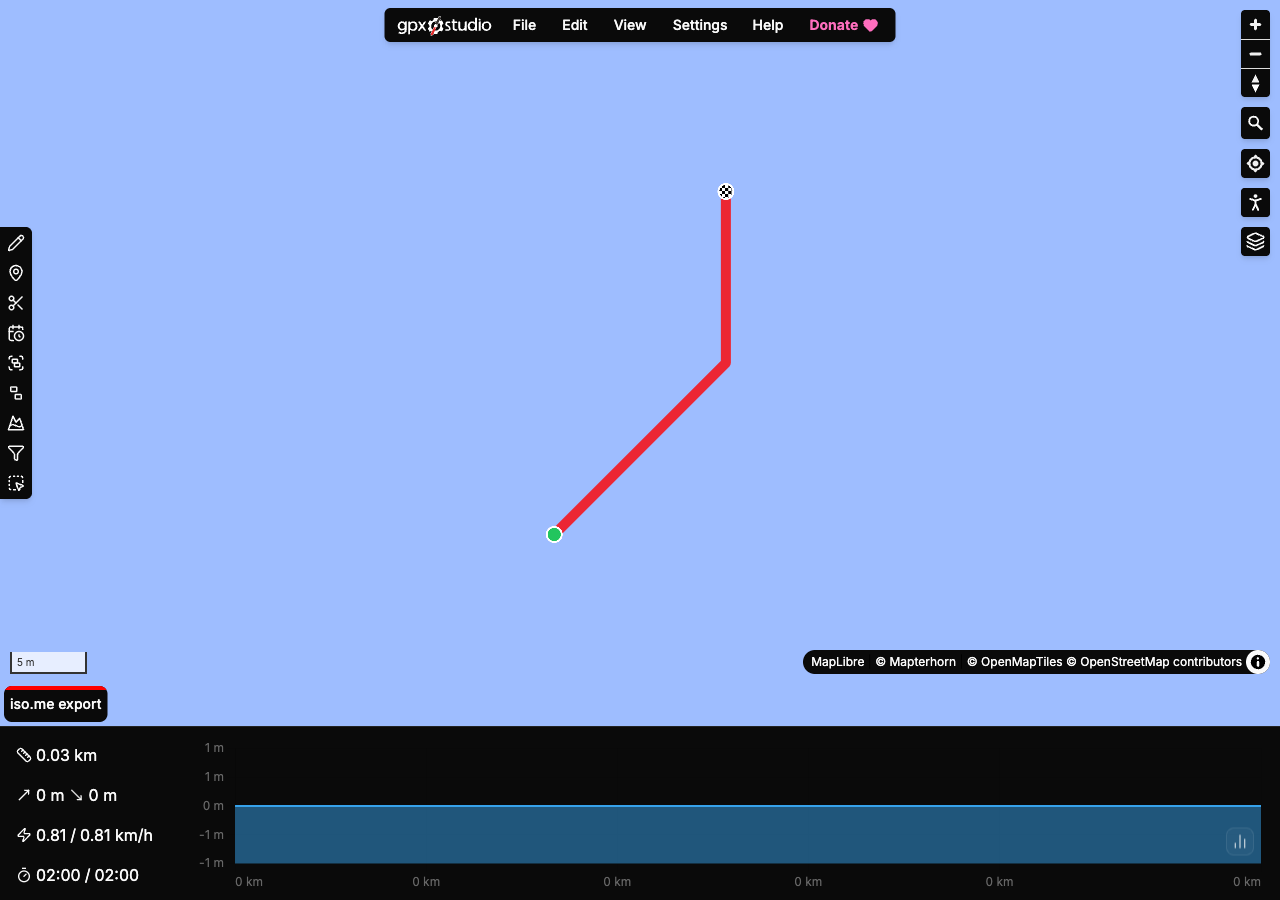
- Checked the saved file, then opened that exact public synthetic file in gpx.studio.
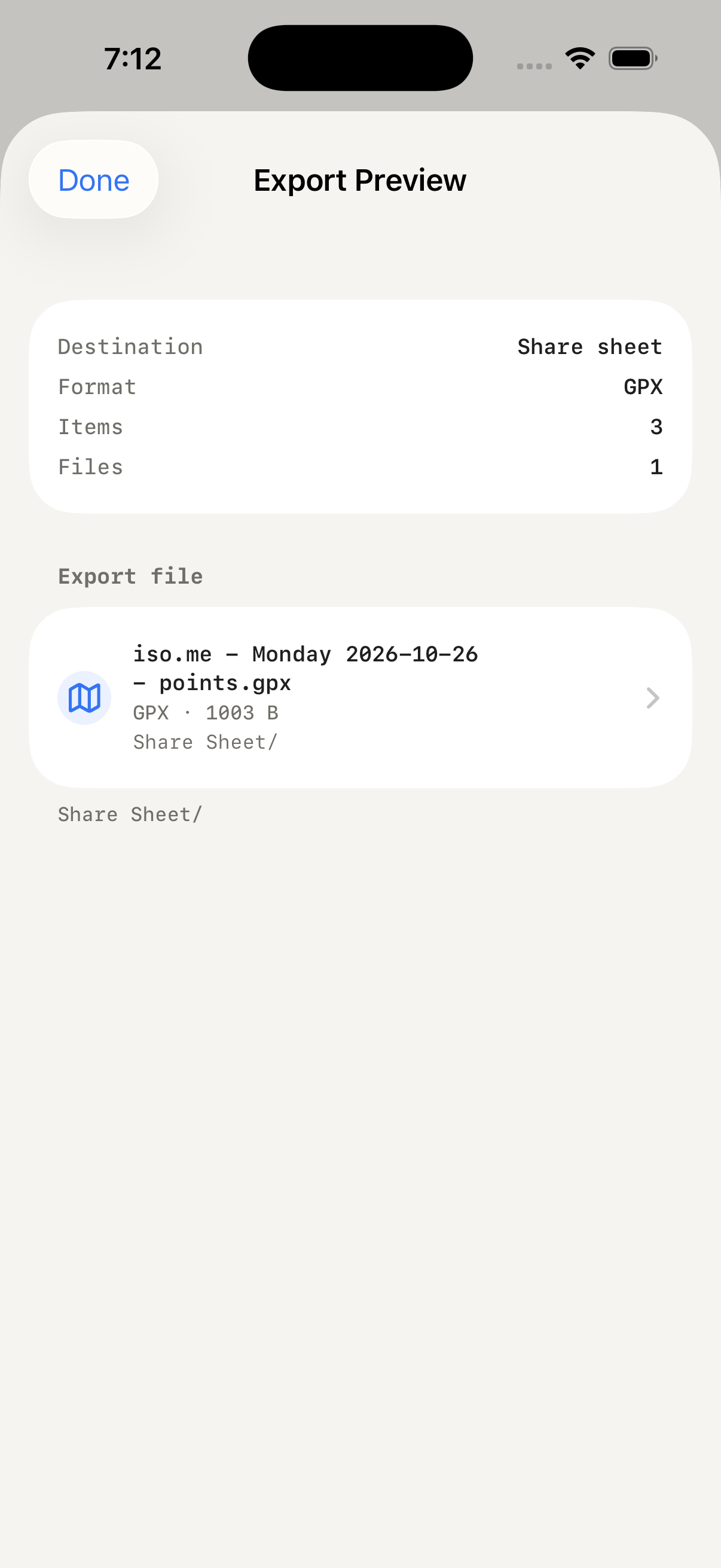
Download the exact GPX saved through Files. The saved copy matched the share-sheet file byte for byte. It contains three track points, one segment, and times 12:00, 12:01, and 12:02 UTC on January 1, 2000. No visit waypoints are included.
In this single-file example, the generated filename was iso.me - Monday 2026-10-26 - points.gpx, while the point times were in 2000. The metadata time records file generation. Inspect the actual track timestamps rather than treating the filename as proof of its date range.
Open the saved synthetic export in gpx.studio. In a fresh desktop browser context, the viewer displayed the angled three-point line, 0.03 km, and 02:00 / 02:00 moving and total time. Those are viewer results for invented data, not a GPS accuracy or distance benchmark.
The app’s Export screen, file creation, share sheet, Save to Files, and viewer handoff were checked with unchanged release-source export code and a separate test identity. This was not the App Store binary, a purchase flow, a physical recording, or an unattended export. Keep those evidence limits separate from the earlier serializer-only sample.
If the export is empty or the line looks wrong
For an incomplete Whereday day, use the missing visits and route points checklist to distinguish recording, display, Watch sync, and export issues.
- No points in Preview: check the selected dates and filters, then open the same day in Timeline. Export cannot create a path that was not recorded.
- Pins instead of a line: check whether you exported Visits rather than Points.
- The path has gaps: check recording state, permission, and auto-stop. Inspect the original points before changing filters to include less accurate fixes.
- File saved somewhere unexpected: check the default export folder before repeating the export. Some exports produce more than one file.
- A viewer rejects the file: confirm it supports GPX 1.1 tracks and that the file was completely saved. Keep the original while checking the error.
Keep a separate copy for restoring your journal
GPX is a portable map format, but Whereday does not import GPX. To retain records you can import later, export visits and route points separately as supported Whereday JSON files and keep both. A map file is not a complete backup of every journal setting or outing edit. Follow the backup and restore checklist for a transferable copy of supported records.
For spreadsheet rows, CSV may suit your next task better. Read the format and restore matrix before choosing an archive format. For automatic copies, see scheduled exports; background execution is best effort.
Exported coordinates and times can reveal your movements. A file saved in cloud storage or sent to another app follows that destination’s privacy rules. Check the file before sharing it.
Record the route.
Choose how to keep it.
Try free recording and export preview. The optional purchase unlocks writing files; see current pricing.
Download free for iPhoneReviewed October 26, 2026. Steps reflect Whereday’s recording and export controls; labels can vary by app version. For setup, read the private journal guide; for existing Apple or Google records, see how to view iPhone location history.