Practical iPhone guides
What to check when visits or route points are missing in Whereday
Check the date and recording state, then separate missing points, missing visits, pending Watch transfers, and export filters. Keep existing records while you investigate.
Find out which part is missing
If an Whereday day looks empty, check the selected date and recording state first. Then separate four different problems: missing route points, a missing visit, records still on Apple Watch, or an export that excluded records. Each needs a different check.
This guide is for an existing Whereday journal. For Apple Maps or Google Timeline records, use the iPhone location-history guide. Installing Whereday cannot recover a route that another app never recorded.
Match the symptom before changing anything
| What you see | First check | Next step |
|---|---|---|
| The whole day is empty | Timeline date and Map date range | Confirm whether recording was running during that period. |
| A path ends partway through | Stop time and Stop after setting | Inspect the last recorded point and check permission. |
| A route exists but a stop is missing | Route points at the expected stop | Review visit detection separately; a path is not a list of confirmed visits. |
| Watch recorded, phone looks empty | Watch sync message and recording date | Open both apps, check transfer, then inspect the phone’s day. |
| Timeline has data, export is empty | Export data type, dates, and filters | Check Preview before writing another file. |
| A visit has coordinates but no useful name | Location names setting and place correction | Review or rename the visit instead of treating it as absent. |
Note the date and approximate time of the gap. Compare Map and Timeline for that same period. A Map range excluding yesterday and a Timeline opened on today can make retained history look missing.
1. Check whether the session was recording
Start enables GPS recording, visit monitoring, and significant location changes together. Stop ends those services. A location permission alone does not mean a recording was active. The app’s current recording state also cannot prove that it was running throughout yesterday’s trip.
- Open the expected day in Timeline and inspect any outing’s start and end times.
- Check Settings → Location tracking → Stop after. A timer shorter than the trip can explain why its later section was not recorded.
- For a new short test, tap Start and confirm the recording state changes. After a permission prompt, check the state again rather than assuming the session began.
- Finish the test with Stop, then inspect its route and times in Timeline.
A saved outing can contain zero route points
In our isolated 1.7.16 release-source simulator check, Start changed to Stop and the timer ran. After stopping, Timeline saved an eight-second outing with zero distance and zero points. Its detail explicitly said No GPS points were saved for this outing yet. A running timer or an outing card alone does not confirm a route was captured.
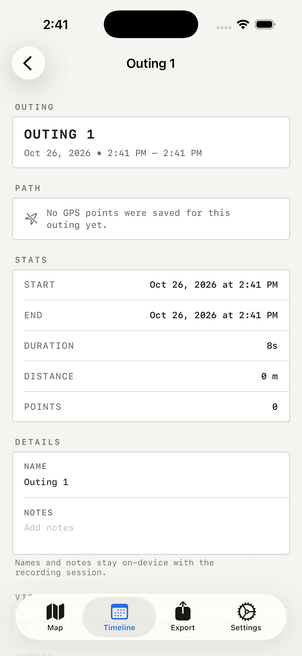
Open your outing and check Points and the path, then compare the expected time range. For the complete first-session checklist, see the recording guide.
Review the app’s permission under iPhone Settings → Privacy & Security → Location Services. Whereday offers Always access for background visit monitoring; an active manual session and automatic visit detection have different permission needs. Follow Apple’s Location Services instructions if the controls on your iOS version differ.
For a new test, allow time to acquire a location and choose an open area with a clear view of the sky. Apple explains that GPS accuracy can improve over several minutes and that buildings, roofs, and terrain can obstruct signals. This is a future-recording check, not a way to recover earlier movement.
Changing permission can help a future recording. It does not fill an earlier gap. See the tracking reference for the shared Start/Stop controls.
2. Separate missing points from hidden points
A sparse route can come from the chosen distance filter, rejected GPS fixes, or points hidden as glitches. These are different from a session that never ran.
- Distance filter: a larger value requests updates after more movement. Compare the setting with a short route before relying on it for detail such as small turns.
- Rejected fixes: Whereday saves incoming route locations only when reported accuracy is between zero and 100 meters. A fix outside that range is not a hidden point you can reveal later.
- Hidden glitches: some saved points are flagged as outliers. Enable Settings → Map display → Show GPS glitches to inspect them. A newly visible spike is not evidence that you travelled along it.
If the route is visible in Whereday but absent from a file, choose Points in Export, select the same dates, and review accuracy and glitch filters in Preview. A Visits GPX contains stops rather than the continuous path. Follow the GPX export walkthrough for file checks.
If you are changing settings to manage energy use, use the battery comparison checklist. A larger distance filter still requests high-accuracy GPS and cannot recreate points from before the change.
3. Check visits separately from the path
A route passing a building does not establish that a visit was detected there. Visit arrivals and departures are separate records, and they may not appear as an immediate check-in at every stop.
If the visit exists but the label is wrong, review its coordinates and use place corrections or a saved place. Turning Location names off prevents the naming request to Apple’s geocoding service; it does not switch off the route recorder.
You can add a past visit manually when you know where and when you stopped. That adds a journal entry; it does not recover a measured route or prove an automatic detection occurred. The places and manual-entry reference explains the available corrections.
4. If the recording came from Apple Watch
Check the Watch before assuming the phone lost its copy. Bring the paired devices together, open Whereday on the iPhone and Watch, and use Sync Now if your app version offers it.
Sync queued means delivery is pending; it does not confirm the phone imported every record. Synced with iPhone reports an acknowledgement. After either message, inspect the recording date on the phone and check both points and visits. Nothing to sync describes the pending queue, not the completeness of your journal.
Keep the Watch app installed while checking pending records. Its queue is not a complete backup of everything previously transferred. Follow the Watch recording and sync guide for the detailed status checks. Its checked queue example shows why points can remain queued after the phone has saved them, and why the phone’s date and point count still need checking.
5. If history exists but the exported file is empty
Inspect Export Preview before changing the journal. Preview is free; writing a file requires the optional export unlock. Work on one expected date and change one filter at a time.
- Match the record type. Choose Points for a measured path or Visits for stops. A visit record does not supply the intervening GPS route.
- Check dates and time of day. Use a range covering the expected record. Disable the time of day filter for the comparison. Visit selection uses arrival time; an overnight visit arriving before the selected range can be excluded even if you were still there the next morning.
- For Points, check quality filters. Temporarily remove the maximum accuracy cap and compare with GPS glitch exclusion off. This can reveal saved records excluded by export settings; it cannot restore fixes rejected before saving. Restore your preferred filters after the comparison.
- For Visits, check completion and duration. Turn off Only completed visits and remove the minimum duration for a comparison. An open visit or a short stop can otherwise be excluded.
- Preview again. If the expected records now appear, the settings explain the difference. If they remain absent, return to the same date in Timeline and identify whether you actually have points, visits, or only an outing.
For an example you can inspect without sharing your history, the checked GPX example contains five invented points from the released app’s serializer. It demonstrates a file and viewer result, not recovery of missing records. The export reference covers formats and field choices.
Preserve what remains before retrying
Do not clear history, delete the outing, or reinstall as an initial troubleshooting step. Deleting an outing can also delete its route points. Keep supported exports you already have, and use the backup checklist if you need a separate copy of the retained records.
The verified public 1.7.16 (46) release has no import preview or general duplicate check. Post-import visit reconciliation can combine nearby visits, while repeated points can be added again; see the checked import example. Repeatedly importing an overlapping file is not a way to refresh the display. A backup can only restore the records it actually contains; Restore Purchases restores an eligible entitlement, not a server copy of your journal.
What to include when asking for help
- App and iOS versions, plus whether the recording came from iPhone or Watch.
- The affected date, approximate time, and timezone.
- Whether the problem is missing points, visits, names, sync, or an export.
- The recording state, Stop after value, and any exact error or sync message.
Describe the symptom before sending a route file. You can contact support without including your coordinates or a full location archive.
Common questions
Why does my outing have a duration but no route?
The session records its own start and stop times. It can finish with zero saved GPS points, as the checked example above shows. Inspect Points and the path before treating the timer as proof of a recorded journey.
Can I recover yesterday’s route by enabling location access today?
Permission changes affect future collection. They do not recreate an earlier route. Check retained records, a pending Watch transfer, or a separate backup before deciding the history is gone.
Does a blank export mean my journal was deleted?
No. The selected record type, date range, time of day, and quality filters can exclude retained records. Compare Preview with Timeline for the same date before deleting or importing anything.
Will a saved place fill an old gap?
A saved place provides reusable location details. You can separately add a known past visit, but neither action recreates measured movement. Use the saved places reference for the distinction.
Check a short route.
Then trust a longer day.
Recording and reviewing history are free. Check one finished session before relying on a new setup for a long trip.
Download free for iPhoneReviewed October 26, 2026 against Whereday 1.7.16 (46) release-source recording and export filters, the checked empty-outing example, Watch-sync source, and Apple’s linked Location Services guidance. This is a diagnostic checklist, not a guarantee of recovering deleted or unrecorded movement. Controls can vary by version.