Practical iPhone guides
Google Maps Timeline on iPhone: where it is and how to keep it
Where Timeline is on iPhone now, why it looks empty, and how to back it up, move it and export it.
Where Google Maps Timeline is on iPhone
Open Google Maps, tap your profile picture or initial, then tap Your Timeline. That screen shows what Google Maps on this iPhone saved while Timeline was on. If Timeline was off, or the data was auto-deleted, deleted by you, or lives on another device, those days will be empty here.
The rest of this guide covers why Timeline often looks different from what you remember, how to turn it on, what to check when days are missing, how to back it up and move it to a new iPhone, and how to export a copy you control.
Why your Timeline looks different or empty
In its December 12, 2023 announcement, Google said three things about Timeline (then still called Location History):
- Saved on the device. Timeline would be saved on your device instead of only in the cloud. This applies to people who have turned the setting on; it is off by default.
- Optional encrypted backup. Backing up to the cloud is optional, useful when you switch phones. Google said backed-up data is encrypted so no one can read it, including Google.
- Three-month default auto-delete. When you first turn it on, auto-delete is set to three months by default, down from 18 months. Older data is removed automatically unless you extend the period or turn auto-delete off.
Google said the changes would roll out gradually on Android and iOS. So what you see depends on this phone’s settings, whether a backup exists, and your auto-delete period. This guide limits itself to what Google’s own pages say.
Turn Timeline on
- Open Google Maps, tap your profile picture or initial, then Your Timeline.
- Tap More, then Location & privacy settings.
- Set Location to Always.
- Under Location settings, tap Timeline is off, then Turn on, then Turn on again.
Turning Timeline on now does not fill in past days. It saves from this point forward.
Steps follow Google Maps Help: Manage your Timeline (iOS), checked November 21, 2026. Google can change labels during rollouts; if yours differ, follow the current help page.
Timeline is empty or missing days: checks
| Situation | What to check | Where |
|---|---|---|
| Timeline was off | Days before you turned it on were never saved. | Your Timeline → More → Location & privacy settings |
| Location wasn’t Always | Set Location to Always. | Location & privacy settings |
| Auto-delete removed older data | Auto-delete can be 3, 18 or 36 months; older data is gone. | Timeline settings |
| Edits on another device | Edits and deletions on one device don’t carry over to others. | Check the device that recorded the day |
| Maps deleted or device reset | Deleting Google Maps or resetting the device removes Timeline data from that device. | Restore from a backup if one exists |
| New phone | Timeline doesn’t appear until you import from a backup. | See backup below |
Days that were never recorded, or were deleted, can’t be recovered by Google or by Whereday.
Back up Timeline and move it to a new iPhone
Back up
- In Your Timeline, tap the cloud icon.
- If auto-delete is on, tap Don’t auto delete activity. Backup requires auto-delete to be off.
- Turn on Backup, then tap Yes.
Changes can take a few days to appear in a backup.
Move to a new iPhone
- On the new device, open Your Timeline and tap the cloud icon.
- Under “Your backups”, select the old device.
- Tap More, then Import, then Import again.
Turning off backups doesn’t delete data already on your devices. Source: Google Maps Help, checked November 21, 2026; labels may change.
Export a copy you control
- In Google Maps, tap your profile picture or initial.
- Go to Settings → Location & Privacy → Export Timeline data.
- Choose Save to Files. The file is named
location-history.json.
Keep an unchanged original and work on copies. To see what is inside, read the Google Timeline JSON formats guide and open a copy in the Timeline inspector, which runs in your browser.
Delete a visit, a day, a range or everything
Google’s help page describes deleting a single visit, a day, a date range, or all of your Timeline, and Google’s 2023 post says you can delete all or part of your data at any time. Follow the Delete steps in Manage your Timeline (iOS) for the current menus on your version.
Deletion is permanent. Neither Google nor Whereday can bring deleted days back. If you might want them, export a copy or back up first.
Keep a history that isn’t tied to one app’s settings
Whereday is a separate journal for recording from now on. It records future visits and GPS routes on iPhone and Apple Watch, keeps them on the device, and shows a map of each day with a day-by-day timeline. It exports GPX, KML, GeoJSON, CSV, JSON and Markdown (export and import), and needs no Whereday account. See tracking for how recording works.
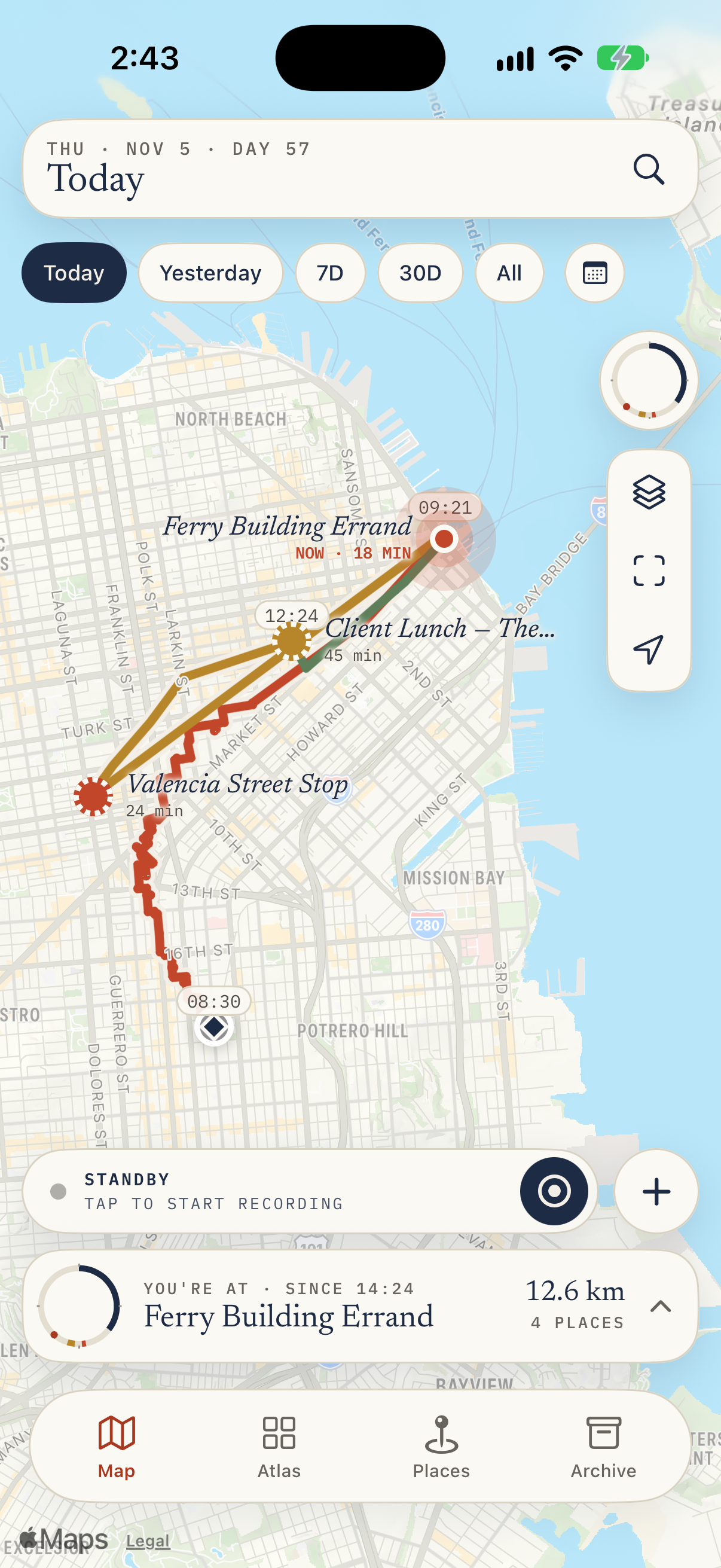
If you saved a supported Google JSON file, Whereday can import it with a preview. Import single files, keep the original, and expect that not every Google activity carries over: see the import guide.
Access. New users need an eligible trial, subscription or Lifetime purchase to track. Existing users keep their prior rights. Import and Export Preview are free. The App Store sheet is authoritative for prices. Installing Whereday cannot reconstruct days that were never recorded.
Compare options in Whereday and Google Timeline and location history apps for iPhone, or see how to view your iPhone location history and back up what you record.
FAQ
Can I see Google Timeline on a computer?
The help page we checked documents the iPhone steps, so those above are the documented path here. We don’t make claims about a computer view.
Can I recover deleted Timeline data?
No. Deletion is permanent. A backup you made earlier is the only restore route Google describes (see above).
Is Timeline the same as Significant Locations?
No. Timeline is Google Maps’ feature; Significant Locations is an Apple setting. See the Significant Locations guide.
Record the days you want to keep.
Whereday records from now on and can’t fill in days nobody recorded.
Download free for iPhoneGoogle steps follow Google Maps Help, Manage your Timeline (iOS), checked November 21, 2026; menu labels can change during rollouts. The 2023 changes are as stated in Google’s Keyword post of December 12, 2023. Whereday claims follow its export and import, tracking and timeline docs.