Practical iPhone guides
Significant Locations and Visited Places on iPhone
Where each feature lives in iOS 26, why it often shows only a few places, how to clear or turn it off, and how to keep a history you can export from now on.
Quick answer: two features, two places to look
- Significant Locations & Routes is a system setting. Open Settings → Privacy & Security → Location Services → System Services → Significant Locations & Routes. Some iOS versions and Apple pages use the shorter label Significant Locations.
- Visited Places is a list in the Maps app. Open Maps → Places → Visited Places. Apple’s iPhone User Guide documents it from iOS 26, and it isn’t available in every country or region.
- Neither one can be exported. Apple doesn’t document a download, GPX, CSV or JSON export for either feature. If you want a history you can keep as a file, you have to record it yourself from now on.
Menu paths on this page follow Apple’s iOS 26 iPhone User Guide. Apple’s iOS 27 guide uses the same Maps → Places → Visited Places path. If a label on your iPhone is different, use the linked Apple page for your version.
Significant Locations vs Visited Places
The two features are related but not the same. Visited Places needs Significant Locations & Routes turned on, but they live in different apps and give you different controls.
| Question | Significant Locations & Routes | Visited Places |
|---|---|---|
| Where to find it | Settings → Privacy & Security → Location Services → System Services | Maps → Places → Visited Places |
| What it’s for | Learns places and routes that matter to you for personalized features such as predictive routes and Photos Memories | A list of places you’ve been, which you can search, add to guides or share |
| Filter by date | No date filter documented | Yes: date, category or city; All Visits shows every visit |
| How long it keeps data | No retention setting documented | Keep Visits, at the bottom of the list (Forever is one choice) |
| Delete | Clear History (clears it on every device signed in to your Apple Account) | Remove one visit, or Clear History for all |
| Export | None documented | None documented |
| iOS version | Long-standing System Service; older versions label it “Significant Locations” | iOS 26 or later, where available |
Sources: Apple’s Visited Places guide for iOS 26, Clear location history in Maps and Location Services & Privacy.
How to open and manage Significant Locations
- Open Settings, then tap Privacy & Security.
- Tap Location Services, scroll to the bottom and tap System Services.
- Tap Significant Locations & Routes (or Significant Locations on some versions). Your iPhone may ask for Face ID, Touch ID or your passcode before it opens the screen.
What you’ll see
The screen has the on/off switch and a Clear History button. Depending on your iOS version, it may also show a short summary or a list of recent records. Apple’s iPhone guides don’t describe a browsable, day-by-day history here, so don’t expect one. Apple says the feature exists to power other features. It isn’t meant to be a journal you read.
According to Apple, your devices signed in to iCloud keep track of “places you have recently been, how often and when you visited them, and the routes you take to get there,” to learn which places and routes are significant to you. Apple says devices use this to provide relevant information in apps such as Maps, Calendar and Photos, including predictive route suggestions and better Memories in Photos (Apple’s Location Services & Privacy; Apple’s Personal Safety guide).
Clear the history
On the same screen, tap Clear History. Apple says this clears all your significant locations on every device signed in to the same Apple Account. You might do it to reset predictive traffic routing and similar personalized features (Apple’s instructions).
Turn it off, and what that affects
Turn off the Significant Locations & Routes switch on that screen. Before you do, know that it affects more than Maps:
- Apple’s Maps suggestions, and the Calendar and Photos features that use significant places, lose that information.
- Visited Places stops working, because Apple lists Significant Locations & Routes as a requirement for it.
- Stolen Device Protection requires Significant Locations to be on. It uses familiar locations, such as home and work, to decide when to ask for extra security steps (Apple’s Stolen Device Protection article).
How to open and manage Visited Places in Apple Maps
Looking for photos on a map instead? See how to see your photos on a map on iPhone.
Turn it on (iOS 26)
- Open Settings → Apps → Maps → Location. Turn on Precise Location and Visited Places.
- Go back to Settings, then open Privacy & Security and turn on Location Services.
- Tap System Services and turn on Significant Locations & Routes.
Maps may also ask you to turn it on when you open the app. Visits are saved from that point on.
View and filter visits
- In Maps, tap Places, then Visited Places.
- Search by name, category, address or notes, or filter by date, category or city.
- Tap All Visits to browse every visit.
Remove one visit, change how long Maps keeps visits, or clear them all
- Remove one visit: tap More next to a place, then Remove. The same menu lets you add it to your Places, share it, add a note or report a wrong location.
- Keep Visits: scroll to the bottom of Visited Places and tap Keep Visits to choose how long Maps keeps them. Choose Forever if you don’t want older visits removed automatically.
- Clear History: at the bottom of Visited Places, tap Clear History to delete every visit.
Turn off Visited Places
Go back to Settings → Apps → Maps → Location and turn off the Visited Places switch you turned on above. Turning it off doesn’t clear visits that are already saved. Use Clear History for that.
Why Visited Places or Significant Locations shows little or nothing
Work through these checks in order. Most of them only change what gets recorded from now on. Turning a setting on doesn’t bring back days that were never saved, and it doesn’t restore records that were cleared.
| Check | Where | What changing it does |
|---|---|---|
| Precise Location is off for Maps | Settings → Apps → Maps → Location | Future visits only |
| The Visited Places switch is off | Settings → Apps → Maps → Location | Future visits only |
| Location Services or Significant Locations & Routes is off | Settings → Privacy & Security → Location Services → System Services | Future records only |
| The feature isn’t offered in your country or region | Apple’s guide says Visited Places isn’t available everywhere | Nothing to change on the phone |
| Keep Visits removed older visits | Maps → Places → Visited Places → Keep Visits | Stops future automatic removal; doesn’t bring back removed visits |
| Clear History was used, or you reset Location & Privacy | Either feature’s Clear History, or Settings → General → Transfer or Reset iPhone → Reset → Reset Location & Privacy | Cleared records stay cleared |
| It’s a new iPhone or you just set it up | The feature learns over time from where you go | Expect little at first, often only frequent places such as home and work |
| You see a count or summary but can’t open the details | The Significant Locations screen | Apple doesn’t document a detailed iPhone view, so this may be expected |
| Location settings are greyed out | Settings → Screen Time → Content & Privacy Restrictions, or a work or school profile | Ask whoever manages the restriction; future records only |
If Visited Places shows only today, yesterday or a few frequent places, the feature may simply have been on for a short time, or Keep Visits may be removing older entries. The Location Services article covers the Reset Location & Privacy path.
For empty days in Whereday itself, use the missing visits and route points checklist instead. It covers a different app.
What Apple says about privacy, and who can see it
Apple makes these statements in its own documentation:
- Significant Locations & Routes: they “are synced between your devices using end-to-end encryption and cannot be read by Apple” (Location Services & Privacy).
- Visited Places: they “are end-to-end encrypted, can’t be read by Apple, and appear on all your synced devices” (Visited Places guide).
- Sharing with apps: an app can only receive your Visited Places if you choose to share them. Apple says you must have Significant Locations & Routes on and give that app access to your current location first, and the app only gets visits from after you start sharing. You can stop sharing in that app’s location settings (Location Services & Privacy).
Encryption protects the data in sync and from Apple. It doesn’t protect it from someone holding your unlocked iPhone, or another device signed in to your Apple Account, who can open the same screens. If that worries you, review who knows your passcode. Apple’s Personal Safety guide walks through these location settings.
Can you export Significant Locations or Visited Places?
No. Apple’s guides for both features describe viewing, filtering, removing and clearing records. They don’t describe any way to download them, and neither feature offers a GPX, CSV or JSON file. Apps you share Visited Places with only get visits from after you start sharing, so that isn’t a route to your past history either.
Be careful with paid “recovery” or “extraction” tools that claim otherwise. We don’t recommend them, and Apple doesn’t document any export for them to use.
What you can do:
- For one day you need to remember: open Visited Places, filter by that date and take a screenshot. A screenshot is a picture, not a timestamped route, so note the date yourself. More in where you were on a specific date.
- For the future: record your own history with an app that saves it on your iPhone and exports files. See the next section, then the backup guide for keeping a copy.
- If you also used Google Maps: Google Timeline does offer an export. See how to find it and the Google Timeline import walkthrough.
Keep a location history you can actually open and export.
Whereday records your visits and routes on your iPhone from the day you start it, and exports them as GPX, CSV, JSON and more. It can’t read or import Apple’s Significant Locations or Visited Places.
Or read how Whereday’s tracking works first.
Keep your own location history with Whereday
Whereday is a location journal for iPhone. It works like this:
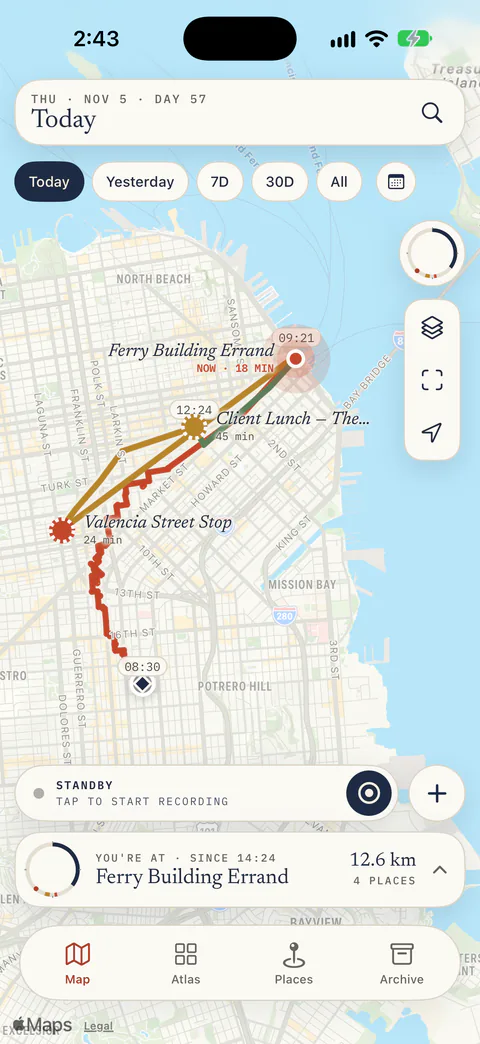
- Recording: tap Start on the map. That turns on visit detection and GPS route recording together, and Stop ends both. With Always location access, it keeps recording in the background. See the tracking reference.
- Reviewing a day: the map opens on today. Choose Yesterday, 7D, 30D, All or a custom range, or swipe up the day card and tap Pick a day to see that day’s stays and the moves between them.
- Correcting it: tap a visit to confirm it, choose the right nearby place, or search for the right spot. You can also add a past stop by hand. The places reference explains the difference between a saved place and a visit.
- Exporting it: save visits or route points as GPX, CSV, JSON, Markdown, GeoJSON or KML. Open a GPX route in the browser GPX viewer to check it.
- Where it’s stored: on your iPhone, with no Whereday account and no Whereday server. Apple’s geocoding service names your visits unless you turn Location names off. Optional webhooks send records only to an endpoint you set up. The privacy and data reference lists everything that can leave your device.
The limits, in plain English
- It records from when you install it and start tracking. It can’t fill in earlier days.
- It can’t read, import or recover Apple’s Significant Locations or Visited Places, and nothing can export those for you.
- Because nothing is synced to a cloud, keep your own copies. The backup guide shows how.
- Access: from version 1.8, new users need an eligible trial, subscription or Lifetime purchase to track. Existing users keep free tracking and prior purchase rights. Import and Export Preview are free. New users from 1.8 keep exports after tracking access ends; existing free users keep their previous export-unlock requirement.
If you used Google Maps Timeline as well, read the Whereday and Google Timeline comparison.
Common questions
Why does Significant Locations only show home and work?
The feature learns places that matter to you over time, from how often and when you go there. Places you visit often, such as home and work, are what it’s built to recognize. A new phone, a recent Clear History or a recent Reset Location & Privacy also leaves it with little to show.
Can police or Apple see my Significant Locations?
Apple says Significant Locations & Routes and Visited Places are end-to-end encrypted and can’t be read by Apple. Apple’s pages linked above don’t say anything more about access requests, and we won’t guess. Anyone with your unlocked iPhone, or another device signed in to your Apple Account, can open these screens.
Does turning Significant Locations off delete it?
Apple documents Clear History as the way to delete significant locations, on every device signed in to your Apple Account. Apple’s guides don’t say that turning the switch off deletes anything, so tap Clear History if you want the records gone.
Can I get Significant Locations back after a reset?
Apple doesn’t document a way to restore cleared significant locations, and there’s no export to restore from. Apple says the data syncs between devices signed in to your Apple Account. Clear History removes it from all of them.
Does Find My show my location history?
No. Find My keeps no history: it shows only a current or last known location. See what Find My does and doesn’t keep.
Is Visited Places the same as Google Timeline?
No. Visited Places is a list of places in Apple Maps that syncs across your Apple devices. Google Maps Timeline is a separate history in Google Maps, and Google provides a JSON export for it. See the iPhone location history guide to find each one.
Choosing an app to keep your own history? Compare location history apps for iPhone.
Keep a location history you can actually open and export.
Start recording today, review and correct each day on your iPhone, and save it as GPX, CSV or JSON whenever you want. It won’t bring back earlier days.
Download free for iPhoneApple steps checked November 19, 2026 against Apple’s iOS 26 iPhone User Guide (Visited Places; Clear location history in Maps), Apple’s Location Services & Privacy page, the Personal Safety guide and the Stolen Device Protection article. Apple’s iOS 27 guide uses the same Visited Places path. Menus can vary by version and region. Whereday features follow the published tracking, places, export and privacy references. The screenshot shows Whereday with invented data.