Practical iPhone guides
See where you were on a specific date on iPhone
Which iPhone sources can jump to a date, how to rebuild a day when none were on, and how to make the next date answerable.
Quick answer: where was I on a specific date?
- Apple Maps: open Maps → Places → Visited Places and filter by date. Apple documents this for iOS 26 and later, where available, and it only has visits if the feature was on and Keep Visits hadn’t removed them.
- Google Maps: if you used Timeline, tap your profile picture, then Your Timeline, and select the date.
- If neither was on, rebuild the day from records that carry a real date: photos, workouts, calendar events, receipts and messages. They show where you were probably, not a route.
Don’t use Significant Locations & Routes for this: Apple documents no date filter for it. Find My keeps no history at all.
Which iPhone sources can show a given date
| Source | Jump to a date? | How far back | Export? | Notes |
|---|---|---|---|---|
| Apple Maps Visited Places | Yes, filter by date | Your Keep Visits choice | None documented | iOS 26 or later, where available. Visits only, no route. |
| Significant Locations & Routes | No date filter documented | No retention setting documented | None documented | Exists to power other features, not as a journal. |
| Google Maps Timeline (on device) | Yes, select a date | Until you delete it or auto-delete removes it | Yes, from Timeline settings | Only if Timeline was on, on this device. |
| Find My | No | No history; at most a last known location | None | See Find My keeps no history. |
| Photos | Yes, browse by day, month or year | As long as you keep the photo | Share or save the photo | Shows where a photo was taken, if it has a location. |
| Fitness / Health workouts | Open the workout from that day | As long as the workout is kept | Not covered here | Only workouts you recorded; a route map only if one was captured. |
| Calendar | Yes, open the day | As long as events are kept | Not covered here | A planned place, not proof you went. |
| Wallet transactions | Browse the list by date | Whatever Wallet keeps | Not covered here | Merchant and time, not GPS. |
| Whereday | Yes, date chips and Pick a day | From the day you installed and started tracking | GPX, CSV, JSON and more | Records on your iPhone. Can’t read Apple’s or Google’s history. |
Apple sources: Visited Places (iOS 26), Clear location history in Maps and Location Services & Privacy. Details of the first two features are in the Significant Locations and Visited Places guide.
Apple Maps: jump to a date in Visited Places
- Open Maps and tap Places, then Visited Places.
- Use the filter to narrow the list by date, category or city. You can also search by name, category, address or notes, or tap All Visits to see every visit.
- Scroll to the bottom and check Keep Visits. It sets how long Maps keeps visits, so a date older than that choice won’t be there.
Apple’s guide doesn’t spell out the filter controls, so labels on your screen may differ. It documents no export for Visited Places. To keep what you find, a screenshot is the only way; it’s a picture, not data you can import anywhere. Whereday can’t read or recover Visited Places.
If Visited Places is missing from Maps on your iPhone, see how to turn it on and what it needs. Turning it on now saves visits from now on, not earlier dates.
Google Maps Timeline: pick the date
- Open Google Maps, tap your profile picture or initial, then Your Timeline.
- Select the date you want.
Timeline is stored on the device, and the auto-delete setting you chose applies, so older dates may be gone. If Timeline was off that day, there is nothing to show. Google changes these screens during rollouts; if yours differ, follow Google Maps Help: Manage your Timeline. For backups, moving to a new phone and export, read the Google Maps Timeline guide. If you saved a Google JSON file, you can import it into Whereday with a preview.
Rebuild a day from records you already have
When no location history exists for the date, work through these. Each has a real date attached.
- Photos, by day. In Photos, tap Collections, scroll to Recent Days and tap a day. Apple’s guide also covers Years and Months views, where All shows every photo and video (Find photos and videos by date).
- Photo location and time. Open a photo and swipe up or tap the Info button. Apple says the details show when the photo was taken and where; tap the location link to open it in Maps (See photo and video information). For all photos on a map, see how to see your photos on a map.
- Workouts. If you recorded a run, walk or ride with Fitness or an Apple Watch, open that workout from the day. If it has a route map, it shows a path.
- Calendar. Open the day and read events, addresses and times. A calendar event is a plan; it doesn’t prove you went.
- Wallet and payment history. Card and Apple Pay transactions show a merchant, an amount and a time. They don’t show GPS coordinates.
- Messages and email. Search for receipts, bookings, ride confirmations and photos you sent, and check their timestamps.
Accuracy: a photo’s location is where the photo was taken, not where you spent the day. A transaction tells you a merchant and a time, not a coordinate; online payments may not be where you were at all. Treat the result as evidence for a timeline, and say so if you use it for a dispute or a claim. Photos in a time gap can also help place a stop you add later by hand.
Don’t change the Date & Time to “see” an old day
Some pages suggest turning off Set Automatically in Settings → General → Date & Time and choosing another date. We don’t recommend it. It only changes what time your iPhone believes it is. None of the Apple pages above describes setting the clock to reveal location history, and a record that was never saved doesn’t appear because the clock moved. A wrong clock can make sign-ins, certificates and sync fail, and time-based two-factor codes depend on an accurate clock (RFC 6238). If you’ve already changed it, turn Set Automatically back on.
Why the date is empty
- The feature was off that day. Visited Places and Timeline only save from when they’re turned on.
- Keep Visits removed it. Maps keeps visits only for the period you chose.
- History was cleared. Clear History in Maps deletes visits; Timeline can be deleted by day, range or all.
- New phone. Timeline lives on the device and doesn’t appear on a new one unless you restored a backup.
- Auto-delete. Google’s auto-delete removes data past the period you set.
If the gap is in a Whereday journal, follow the missing visits and route points checklist. For every other place a history can live, see how to see your location history on iPhone, and to start a copy you control, back up what you record.
Next time, open the date and see it
Whereday records visits and GPS routes on your iPhone, so a date can be answered later. It records from install onward; it can’t read or recover Apple’s or Google’s history, and it can’t fill in days before you started.
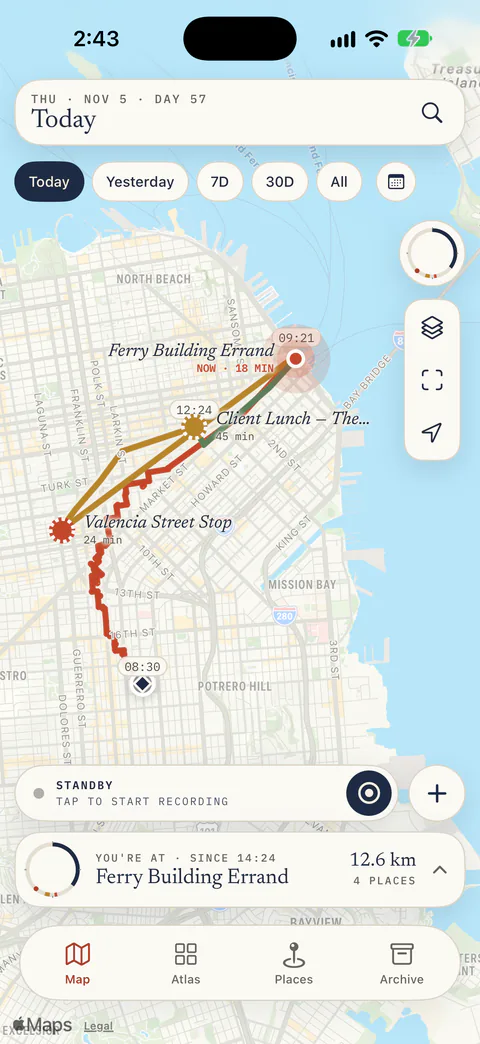
- Find the day: the map opens on today. Choose Today, Yesterday, 7D, 30D, All or a custom range, or swipe up the day card and tap Pick a day to step to any date and see that day’s stays and the moves between them (day-by-day timeline).
- Correct a visit: tap a stop to confirm it or choose the right place.
- Add a missing past stop: tap + and choose Log a past stop, then enter the place and arrival and departure times. It records what you enter; it can’t recreate GPS points (places and past stops).
- Export that day: in Archive, choose a date range, which can be a single day, and save GPX, CSV, JSON and other formats (export and import).
Access: from version 1.8, new users need an eligible trial, subscription or Lifetime purchase to track. Existing users keep free tracking and prior purchase rights. Import and Export Preview are free. New users from 1.8 keep exports after tracking access ends; existing free users keep their previous export-unlock requirement.
Comparing apps? See location history apps for iPhone.
Common questions
Can I see where I was a year ago?
Only if something was recording then and still has it. Check Visited Places (within your Keep Visits choice), Google Timeline (within its auto-delete setting), photos and receipts.
Does Find My show past locations?
No. It shows a current or last known location only. See what Find My keeps.
Can I see the exact time I arrived?
Photo info shows the time a photo was taken, and a Wallet or calendar entry has a time. For an arrival time you need a recorded visit, such as one in Whereday.
Can I export one day?
Not from Apple’s Visited Places or Significant Locations; Apple documents no export. Whereday exports a chosen date range, including one day. Google Timeline has its own export in Settings.
Can I see history for a date before I installed an app?
No. An app can’t recover days it wasn’t recording, and it can’t read Apple’s or Google’s history. Use the sources above.
What about someone else’s phone?
This guide is for your own phone. If you’re worried about being tracked, see Apple’s Personal Safety guide.
Next time, open the date and see it.
Whereday records your own visits and routes on your iPhone from the day you install it, and exports them as GPX, CSV or JSON. It won’t bring back earlier days.
Download free for iPhoneApple details checked November 22, 2026 against the iOS 26 Visited Places guide and the current iPhone User Guide pages for finding photos by date and seeing photo information. Maps menus follow iOS 26; labels can vary by iOS version and region. The Google steps follow the existing Timeline guide and the linked Google Maps Help page, which could not be re-opened for this check. Fitness, Calendar and Wallet are described generally, without menu paths. Whereday features follow its published timeline, places and export references. The screenshot shows Whereday with invented data.