Practical iPhone guides
Does Find My show location history?
What Find My, iCloud.com and Send Last Location actually keep, what you can see when a phone is lost, how consent works, and how to keep a history of your own from now on.
Does Find My keep location history?
No. Find My doesn’t keep a location history. It shows where a device is now or, if the device is offline, the last location it sent to Apple. It never shows a route or a list of places the device has been, and iCloud.com/find doesn’t either.
If you want to see where your iPhone has been in the past, look in Significant Locations and Apple Maps Visited Places instead, or start recording your own history from today. Nothing can bring back places from before a feature was turned on.
What Find My does show
- A live location. When your device is turned on and connected, Find My shows where it is now, in the app or on iCloud.com/find.
- A last known location. If the battery has run out or the device can’t report, Apple says you can see the last known location “for up to seven days in the Find My app.” After more than seven days without a report, it shows No location found. On iCloud.com, Apple says locations are shown for up to 24 hours.
- Offline finding through the Find My network. With the Find My network setting on, nearby Apple devices can help locate an offline iPhone. Apple’s iOS 26 guide says this works for up to 24 hours after it’s turned off, or up to 5 hours in power reserve mode.
- People and Items. People shows the current location of anyone sharing with you. Items shows where an AirTag is, or was last seen. Neither has a timeline.
Each of these is a single point on the map. Apple documents no list of earlier points to scroll back through. Sources: Apple’s Use Find My to locate your lost Apple device or AirTag and Add your iPhone to Find My (iOS 26).
Send Last Location, and how to turn it on
Apple’s iOS 26 guide says that with Send Last Location on, “if your device’s battery charge level becomes critically low, its location is sent to Apple automatically.” That’s one last point, not a path.
- Open Settings and tap [your name], then Find My.
- Tap Find My iPhone and turn on Find My iPhone.
- On the same screen, turn on Send Last Location. Turn on Find My network too if you want offline finding.
Do this now, before anything goes wrong. It’s a setting on the phone itself, so it has to be on before the phone is lost or its battery dies.
Your phone is lost: what you can and can’t see
- Where to look: open the Find My app on another Apple device, a Family Sharing member’s device, or icloud.com/find. Choose the phone under All Devices.
- What you’ll see: its current location if it’s on and connected, or its last known location. If Find My wasn’t turned on before the phone was lost, Apple says you can’t locate, lock or erase it.
- Mark it as lost: choose Mark As Lost (Lost Mode). It locks the phone with your passcode, suspends Apple Pay cards and lets you show a phone number and message to whoever finds it.
- If it’s gone for good: Apple suggests reporting it to the police and your carrier. Keep the device in Find My, even if you erase it, so Activation Lock stays on.
Why there’s no path of where it went: Apple documents a current or last known location, not a log. Once the phone stops reporting, you see only the last point it sent.
Source: Apple’s How to find your lost iPhone or iPad.
What each feature keeps
These features are easy to mix up. None of Apple’s can be exported.
| Feature | What it keeps | How far back | Export | Where it’s stored |
|---|---|---|---|---|
| Find My | One current or last known location per device, person or item | Last known location for up to seven days in the app; up to 24 hours on iCloud.com | None | Sent to Apple |
| Send Last Location | One location, sent when the battery is critically low | A single point; Apple doesn’t state a separate window | None | Sent to Apple |
| Significant Locations & Routes | Places and routes your iPhone learns to power features such as predictive routes | No retention setting documented | None documented | On your devices, synced with end-to-end encryption |
| Apple Maps Visited Places | A list of places you’ve been (iOS 26, where available) | Your Keep Visits choice | None documented | On your devices, synced with end-to-end encryption |
| A journal you record yourself (Whereday) | Visits and GPS route points | From the day you start recording | GPX, CSV, JSON, Markdown, GeoJSON, KML and more | On your iPhone, no account |
The Significant Locations and Visited Places guide covers the two Maps features in detail, and how to see your location history on iPhone lists every other place a history can live, including Google Maps Timeline.
Other people’s locations and consent
Location sharing in Find My shows a person’s current location, and only after they chose to share it. It doesn’t show where they were earlier. When they stop sharing, Apple says their location disappears from your Find My, Maps, Contacts and Messages.
Only use location features on your own devices, or with someone’s clear agreement. This post doesn’t cover tracking another person’s phone without their knowledge, and you shouldn’t do it.
If you think someone is tracking you:
- Open Settings → Privacy & Security → Safety Check (iOS 16 or later). Manage Sharing & Access lets you review who can see your location, person by person. Emergency Reset stops sharing with everyone at once. See Apple’s Safety Check guide.
- Read Apple’s Personal Safety User Guide, including Find My and location sharing and Detect unwanted trackers.
If you’re in immediate danger, contact local emergency services first.
How to keep a history of where you’ve been from now on
To look back at where you’ve been, you have to record it as it happens. Whereday is a location journal for your own iPhone:
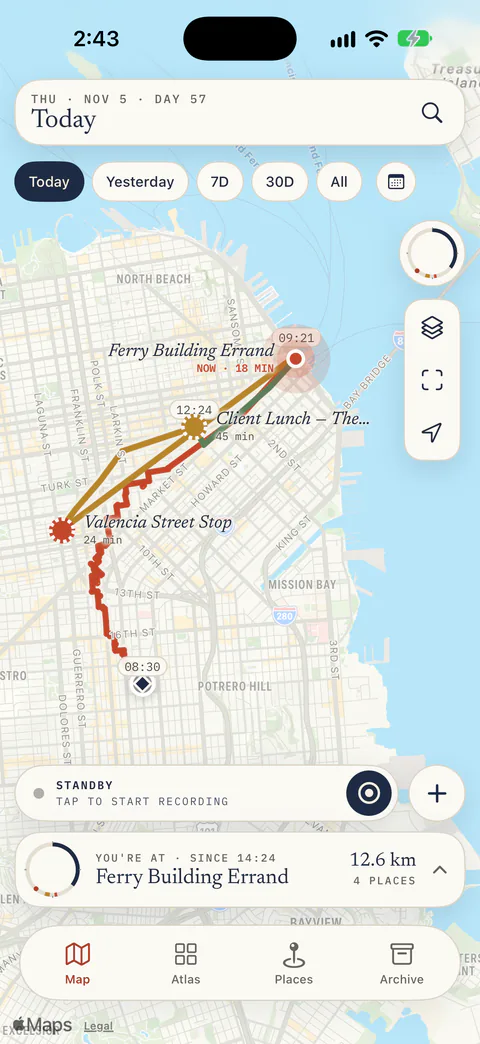
- Recording: tap Start on the map to turn on visit detection and GPS route recording together. With Always location access it keeps recording in the background. See how tracking works, or record a single route as GPX.
- Looking back: pick Today, Yesterday, 7D, 30D, All or a custom range to see your stays and the routes between them. The private location journal guide walks through setup.
- Exporting: save visits or route points as GPX, CSV, JSON, Markdown, GeoJSON or KML, and keep a backup copy.
- Storage: records stay on your iPhone, with no Whereday account and no Whereday server. The privacy and data reference lists what can leave your device, such as Apple’s place-name lookups.
The honest limit: Whereday records from the day you install it and start tracking. It can’t recover earlier places, and it can’t read Find My, Significant Locations or Visited Places.
Access: from version 1.8, new users need an eligible trial, subscription or Lifetime purchase to track. Existing users keep free tracking and prior purchase rights. Import and Export Preview are free. New users from 1.8 keep exports after tracking access ends; existing free users keep their previous export-unlock requirement.
Common questions
Can I see where my iPhone was yesterday in Find My?
No. To see yesterday’s places, check Visited Places in Apple Maps if it was turned on, or an app that was recording at the time.
Does iCloud.com show location history?
No. It shows a current or last known location, for up to 24 hours, with no timeline.
Does Find My keep AirTag history?
No. The Items tab shows where an AirTag is now or was last seen. There’s no trail, and AirTags can’t be located on iCloud.com at all, only in the Find My app.
Can Find My show where a lost phone went after it died?
No. You get the last location it sent, which is the Send Last Location point if that was on. The Find My network may locate it for a limited time after it turns off, but that’s still one point, not a route.
How do I check where I was on a specific date?
See where you were on a specific date on iPhone, which lists which sources can jump to a date.
Is Significant Locations the same as Find My?
No. Significant Locations & Routes is a Location Services setting that learns places that matter to you, and it can’t be exported. Find My locates devices, people and items. See the Significant Locations guide.
Choosing an app to keep your own history? Compare location history apps for iPhone.
Start a location history you keep yourself.
Whereday records your own visits and routes on your iPhone from the day you install it, and exports them as GPX, CSV or JSON whenever you want. It won’t bring back earlier days.
Download free for iPhoneApple details checked November 19, 2026 against Apple’s Find My support article (HT210515), the iOS 26 iPhone User Guide page “Add your iPhone to Find My”, “How to find your lost iPhone or iPad” and the Personal Safety User Guide. Menus can vary by iOS version and region. Whereday features follow the published tracking, export and privacy references. The screenshot shows Whereday with invented data.