Practical iPhone guides
See your photos on a map on iPhone
How to see one photo’s location and all your photos on a map, why some are missing, and how to place photos that have no GPS.
Quick answer
To see where one photo was taken, open it in Photos and swipe up (or tap the Info button). To see all your photos on a map, open Photos, tap Library, tap the Sort and Filter button, then choose Show Map. Only photos with embedded location (GPS) data appear.
If photos are missing, check the causes below. If they never had GPS, Whereday can place them on your map from your recorded route or visits.
See where one photo was taken
- Open the photo or video in the Photos app.
- Swipe up, or tap the Info button (ⓘ).
- If the photo has a location, a small map and place name appear. Tap the map or the address link for more details.
Tap Show Nearby Photos to see more photos and videos from that spot. Videos work the same way. Apple documents these steps in Browse photos and videos by location. If no map appears, the photo has no location; see why below.
See all your photos on a map
- Open Photos and tap Library.
- Tap the Sort and Filter button, then tap Show Map.
- Pinch and drag to explore the map. Tap a photo thumbnail to see everything taken at that location.
Apple’s guide says: “Only pictures and videos that have embedded location information (GPS data) are included.” This path is from the guide’s current version; Apple publishes separate versions for older iOS releases, so check the version selector on the page if your menus differ.
Can’t find it? Older blog posts and forum threads tell you to open Albums → Places. If you can’t find that album on your iPhone, use the Library steps above, or the version of Apple’s guide that matches your iOS release.
Why some photos are missing from the map
The map shows only photos that carry GPS data. These are the common reasons a photo doesn’t.
| Cause | How to tell | Fix |
|---|---|---|
| Camera location access is off | Recent photos from your own camera have no map in Info | Open Settings → Privacy & Security → Location Services, find Camera in the app list and allow location access. This affects future photos only. |
| Location Services is off entirely | The Location Services switch at the top of that screen is off | Turn it on, then check Camera again. Past photos aren’t changed. |
| Screenshots and screen recordings | The item is in the Screenshots or Screen Recordings album | Screenshots aren’t camera captures, so they usually have no location. You can add a location by hand. |
| Received in a chat app or downloaded from a social site | The photo wasn’t taken on your iPhone, and Info shows no location | Some apps can remove location when they send or host a photo. Ask for the original, or add a location by hand. |
| Scans, DSLR or other non-GPS camera imports | The photo came from a scanner or a camera with no GPS | Add a location by hand, or let Whereday match it by time if you were recording that day. |
| Shared with Location turned off | The copy someone received has no location | Your original keeps its location; only the copy you sent has it removed. In the share sheet, tap Options and turn off Location to send a copy without it. |
Apple’s Location Services and privacy page explains app location permissions in general, and Manage location metadata in Photos covers sharing without location.
Add or change a photo’s location
- Open the photo or video in Photos and tap the More button.
- Tap Adjust Info, then Adjust Location.
- Type where the photo was taken, then tap the place when it appears under Map Locations.
To change several photos at once, tap Select, tap the thumbnails you want, then follow the same steps. To remove a location, choose the no-location option in the Adjust Location screen, as Apple’s Manage location metadata page describes. To go back to the original, tap Revert. Apple documents the steps in See photo and video information on iPhone and the removal step in Manage location metadata in Photos.
Place photos that have no GPS with Whereday
Apple’s map can’t place a photo without embedded GPS. Whereday, an iPhone app that records your visits and routes on the device, can match a photo to your recorded day instead. With photo moments enabled, each photo uses the first source that works:
- The photo’s own GPS, placed exactly where it was taken.
- Your route: the nearest recorded GPS point within about 15 minutes of when the photo was taken.
- A visit: if the capture time falls inside a visit (with a little grace), the photo attaches to that place.
Photos that match none of these are skipped.
Controls and privacy
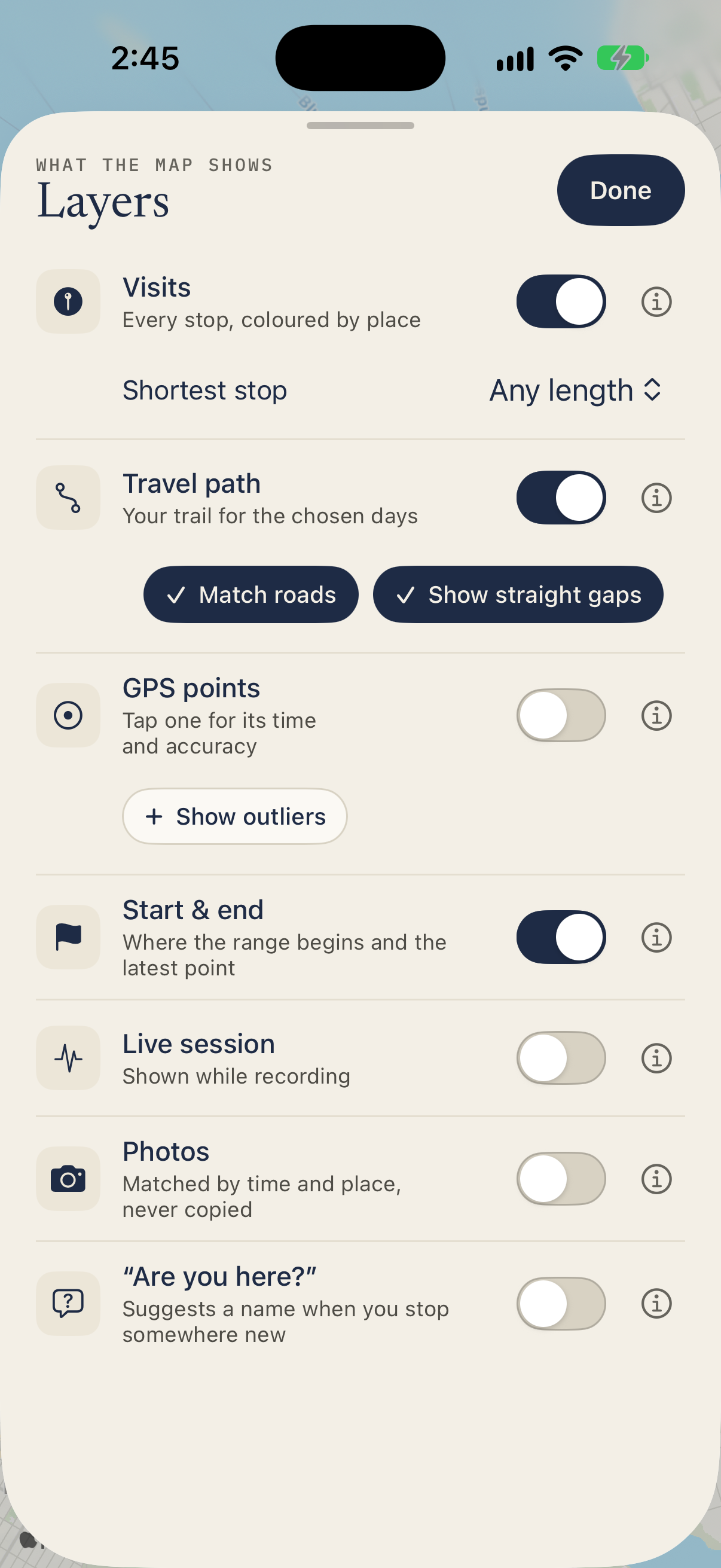
- Automatic syncing and map markers are both off by default. Turn on markers with Photos in the map’s Layers sheet or in Settings.
- Markers can show as thumbnails, pins or dots, and nearby photos cluster together.
- Limited photo access is supported: only the photos you’ve selected for Whereday appear.
- Photo files never leave your Photos library. Whereday stores only each photo’s local identifier and match metadata, on the device.
A limit to know about: matching works only for days Whereday was recording. It can’t place old photos taken before you installed it. If a day has gaps, see why records go missing; to have a route for future photos, record your routes.
Worked example (synthetic)
This is an invented day, not real data. Suppose Whereday recorded a route point at 10:06 and a café visit from 12:00 to 12:40. Nothing was recorded around 17:30.
| Photo | Capture time | Own GPS? | Matched by | Result |
|---|---|---|---|---|
| A | 09:30 | Yes | Its own GPS | Placed at its own coordinates |
| B | 10:12 | No | Route point at 10:06 (6 minutes away) | Placed at that route point |
| C | 12:20 | No | Café visit, 12:00–12:40 | Attached to the visit |
| D | 17:30 | No | Nothing | Skipped |
The full reference is on the Photos on the map page.
Download free for iPhone Put the photos that have no GPS on your map.
Photos map vs Whereday at a glance
| Question | Photos map | Whereday |
|---|---|---|
| Photos without GPS | Not shown | Placed from your route or visits, on days it was recording |
| Coverage | Your whole library, back to the first geotagged photo | Days Whereday was recording |
| Timeline of the day | No | Yes: visits, route and photos together |
| Visits and places | Photo clusters by location | Recorded visits and saved places |
| Routes | No | Recorded travel path |
| Export | No location-list export in Photos | Visits and points as GPX, CSV or JSON (see export and import); not a photo-location list |
| Where data lives | Photos library (and iCloud if you use it) | On your iPhone |
| Cost | Free, built in | Free to download for iPhone |
Photos is the right first stop for geotagged photos. Whereday is for the gaps. Looking for “where was I” rather than photos? Read how to view your iPhone location history and why Apple’s Significant Locations can’t be exported. If you have a location file, the visited countries map turns it into a countries map in your browser.
FAQ
Can others see my photo locations when I share?
They can if the shared photo includes location. In the share sheet, tap Options and turn off Location to send a copy without it, as Apple’s Manage location metadata in Photos explains. Your original keeps its location either way.
Why does a photo show the wrong place?
Location can be inaccurate, for example if you took the photo indoors or with a weak GPS fix, or if someone edited it. You can adjust it in the Info panel.
Can I export a list of photo locations?
Apple doesn’t document a way to export one from the Photos map. Whereday exports visits and points, not a photo-location list.
Put the photos that have no GPS on your map.
Record your days with Whereday, then turn on photo moments. It can’t place photos from days before you started recording.
Download free for iPhoneApple steps follow the linked Apple pages as of November 22, 2026: Browse photos and videos by location (Show Map, swipe up or Info, Show Nearby Photos), See photo and video information (Adjust Location, Select, Revert) and Manage location metadata in Photos (no-location option, share-sheet Options → Location). Apple’s Location Services and privacy page confirms the Settings → Privacy & Security → Location Services path and names Camera as an app that can use location; the exact Camera setting wording is not given there, so it is left general. None of the steps were tested on a device, and menus can vary by iOS version. Whereday behavior follows the published Photos on the map reference and the app source. The screenshot and example use invented data.